Train Your AI to Write Like You
Your AI gets better every time you use it. Review content, give feedback, and Brand Brain automatically learns your style, tone, and rules. No manual configuration needed.
Set your topics, audience, and voice
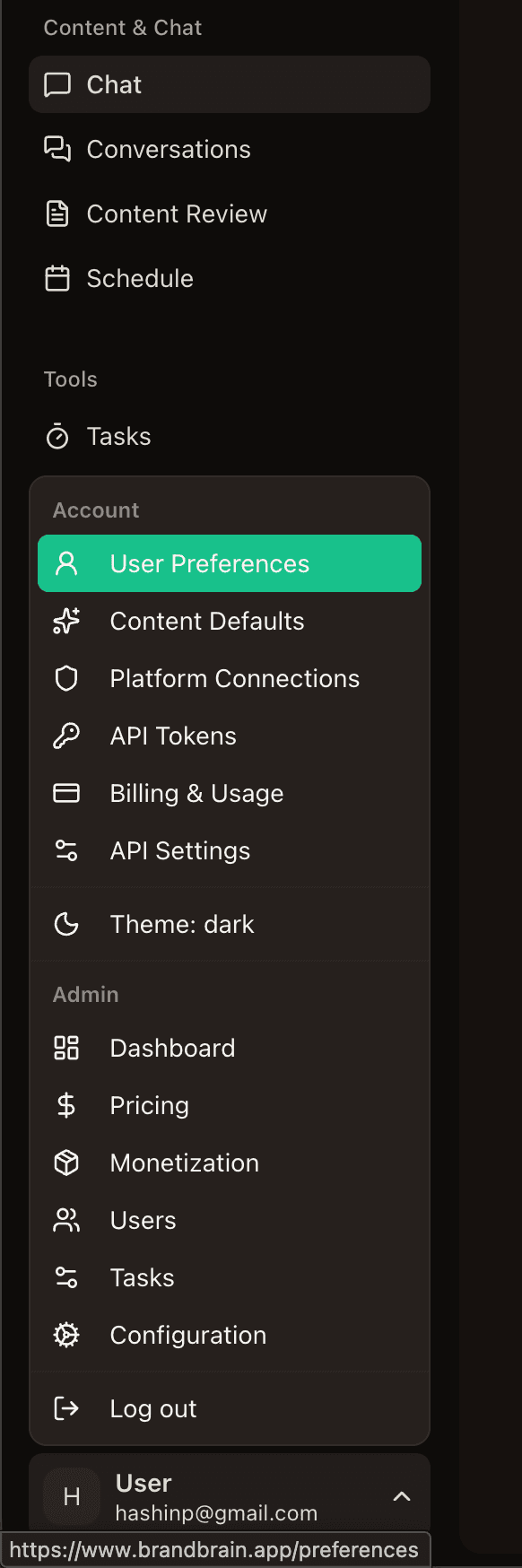
Open Content Defaults from your account menu at the bottom of the sidebar. The first tab lets you define the foundation of your content:
Topics & Niche
Add the topics you create content about. These focus your AI on your area of expertise.
Target Audience
Tag your ideal audience segments. The AI tailors language, examples, and depth to who you are writing for.
Brand Voice Style
Choose your voice style (casual, professional, bold, etc.) and tone. This shapes how every piece of content sounds.
Tone Settings
Fine-tune formality, humor, enthusiasm, and directness. The AI blends these into a consistent brand voice.
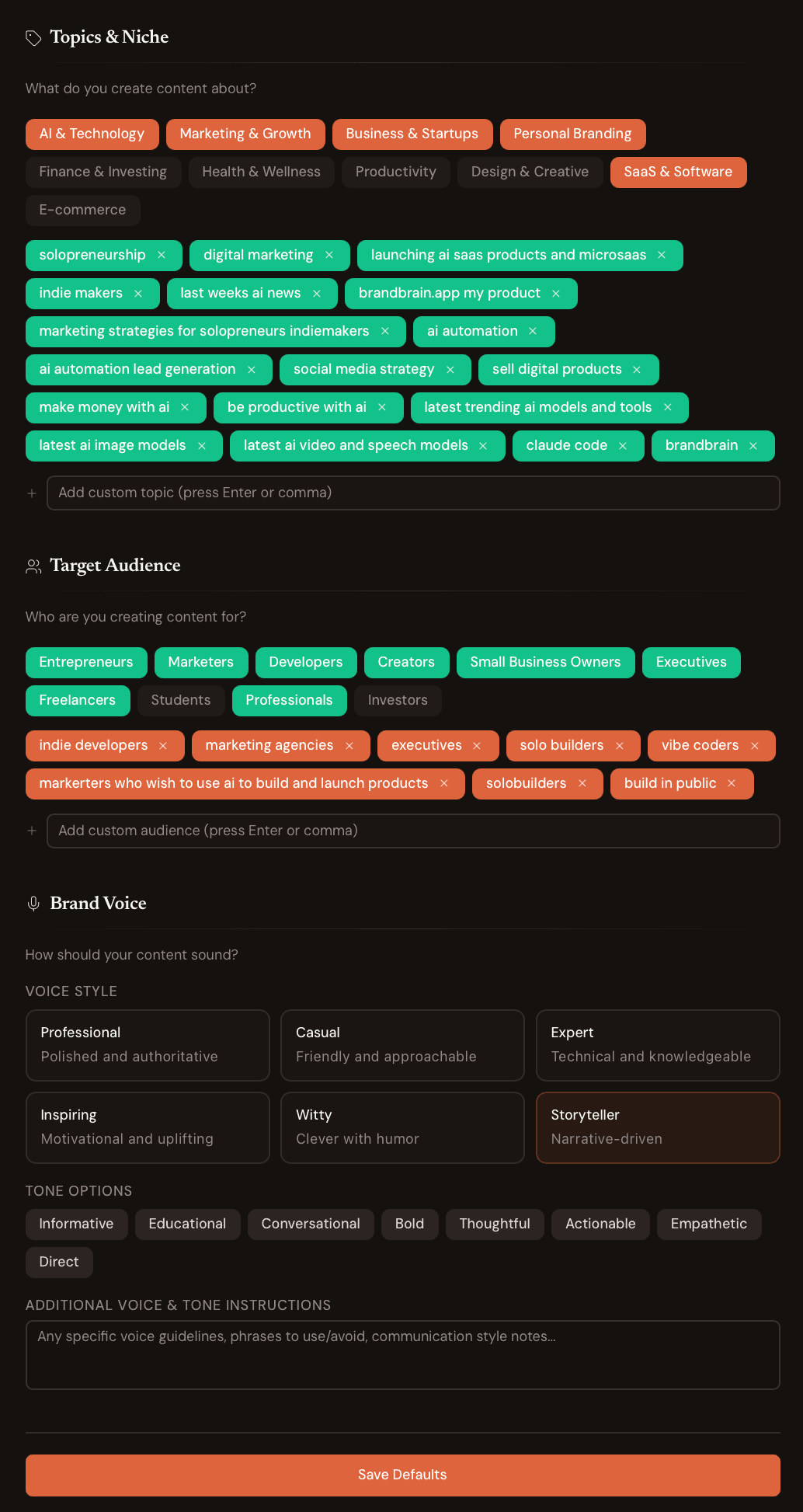
Tip: You already set these during onboarding. Come back here when your niche evolves, you add a new audience segment, or you want to shift your tone.
Set platform-specific rules
Switch to the Platforms & Content Types tab. Each platform and format has its own instruction field where you can define specific rules:
- Formatting rules per platform (e.g., no markdown bold on LinkedIn, use unicode bold instead)
- Content length and caption limits per format
- Custom instructions for each content type (posts, carousels, reels, threads)
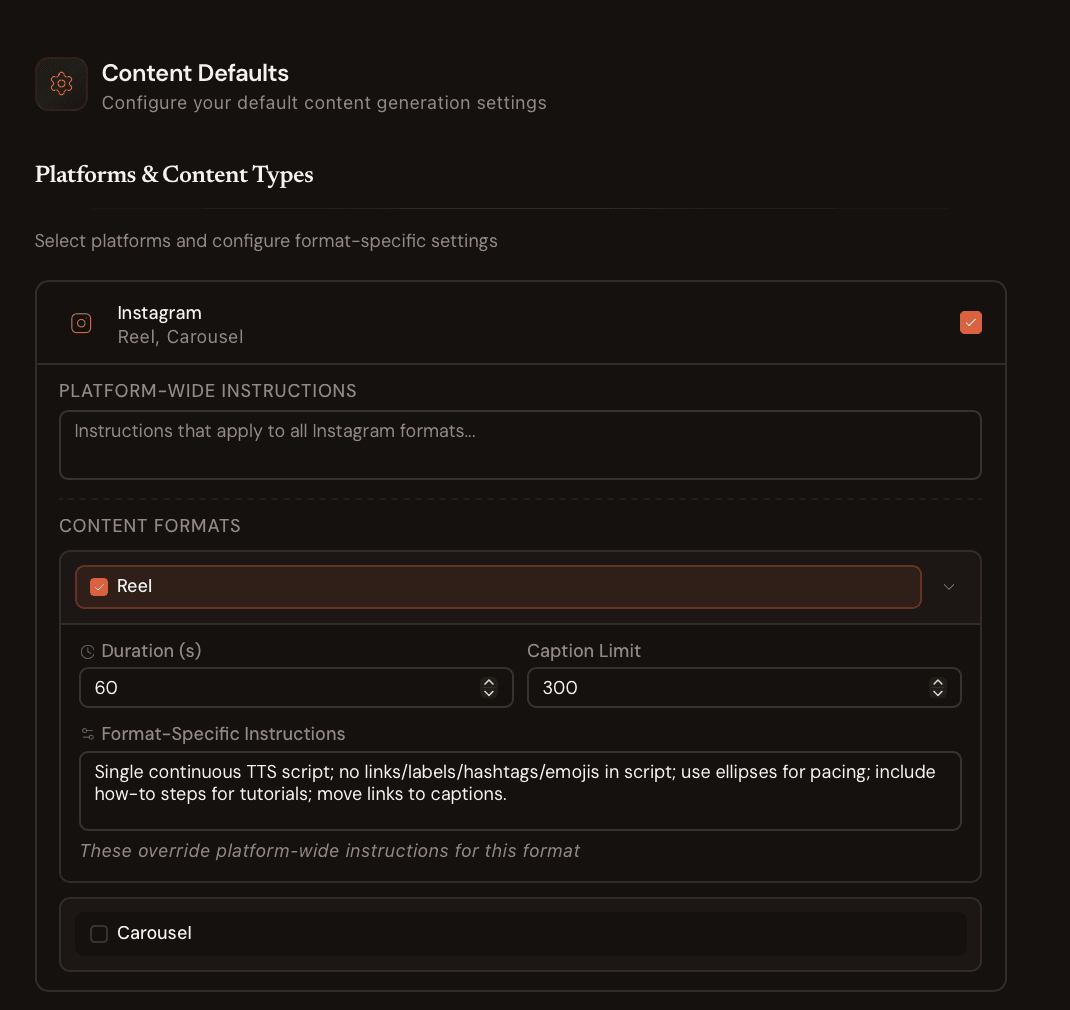
These rules are applied automatically whenever agents create content for that platform. A LinkedIn post follows your LinkedIn rules, an Instagram reel follows your Instagram rules.
Review content and your AI learns
This is where the magic happens. Every time you review a piece of content and give feedback, the agents capture your preferences automatically:
Content Review
Ask an agent to "make it shorter," "change the tone," or "remove the hashtags" and that becomes a preference.
Chat Conversations
Chatting with agents in the chat panel also builds preferences. Style corrections, formatting requests, all captured.
Image Feedback
Ask to change an image style, color scheme, or layout and the AI remembers for next time.
Platform-Specific
"On LinkedIn, always start with a hook" becomes a rule the AI follows for every LinkedIn post.
You don't need to do anything special. Just use Brand Brain normally. Review content, give feedback, and your AI gets smarter with every interaction.
See what your AI has learned
Open User Preferences from your account menu to see a full timeline of everything your AI has captured. Each entry shows:
- The preference or rule the AI learned
- When it was captured
- The category (scoring criteria, formatting, style, strategy)
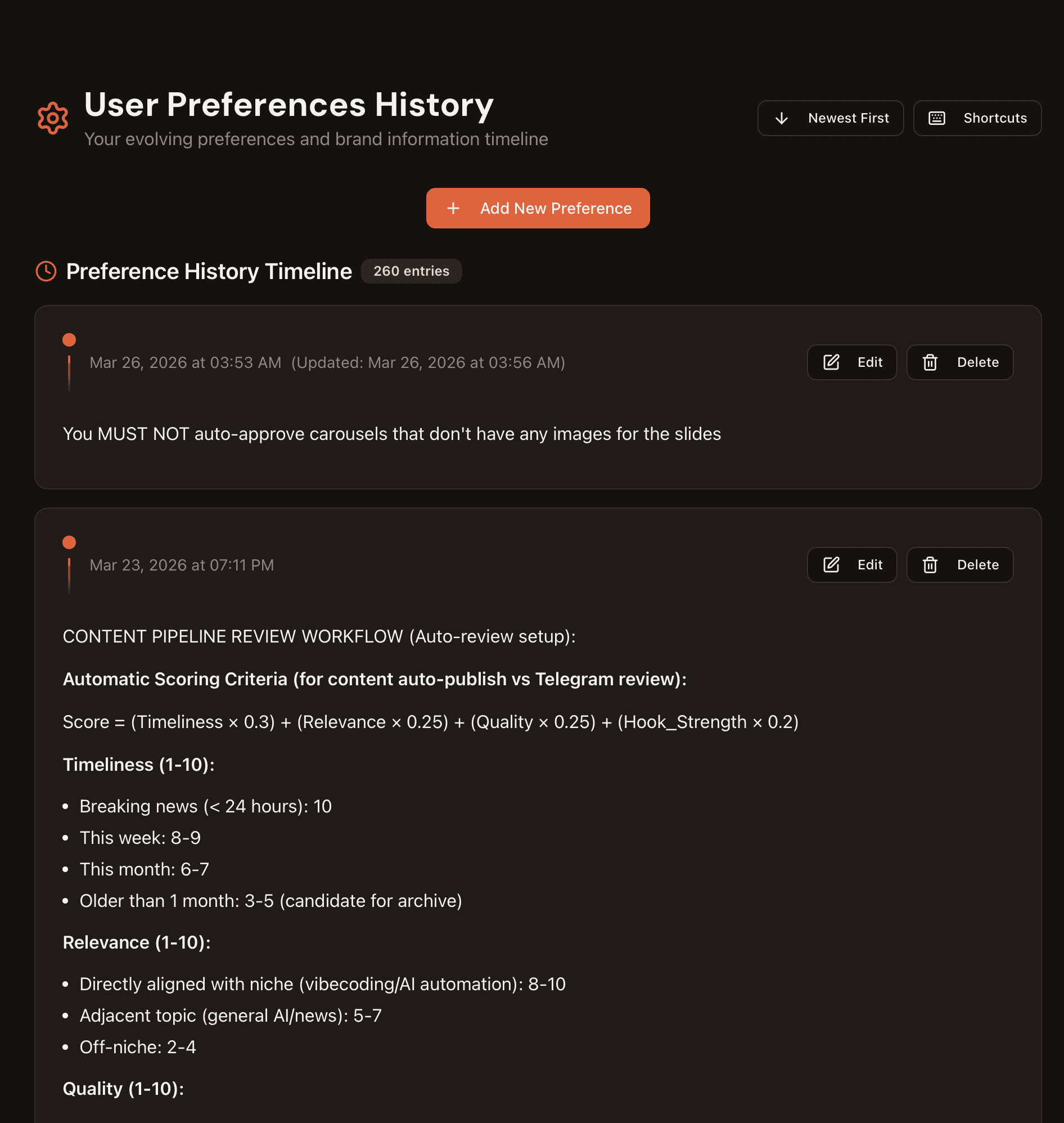
Over time, this list grows into a detailed profile of your writing style. The more you use Brand Brain, the more accurately it mirrors your voice.
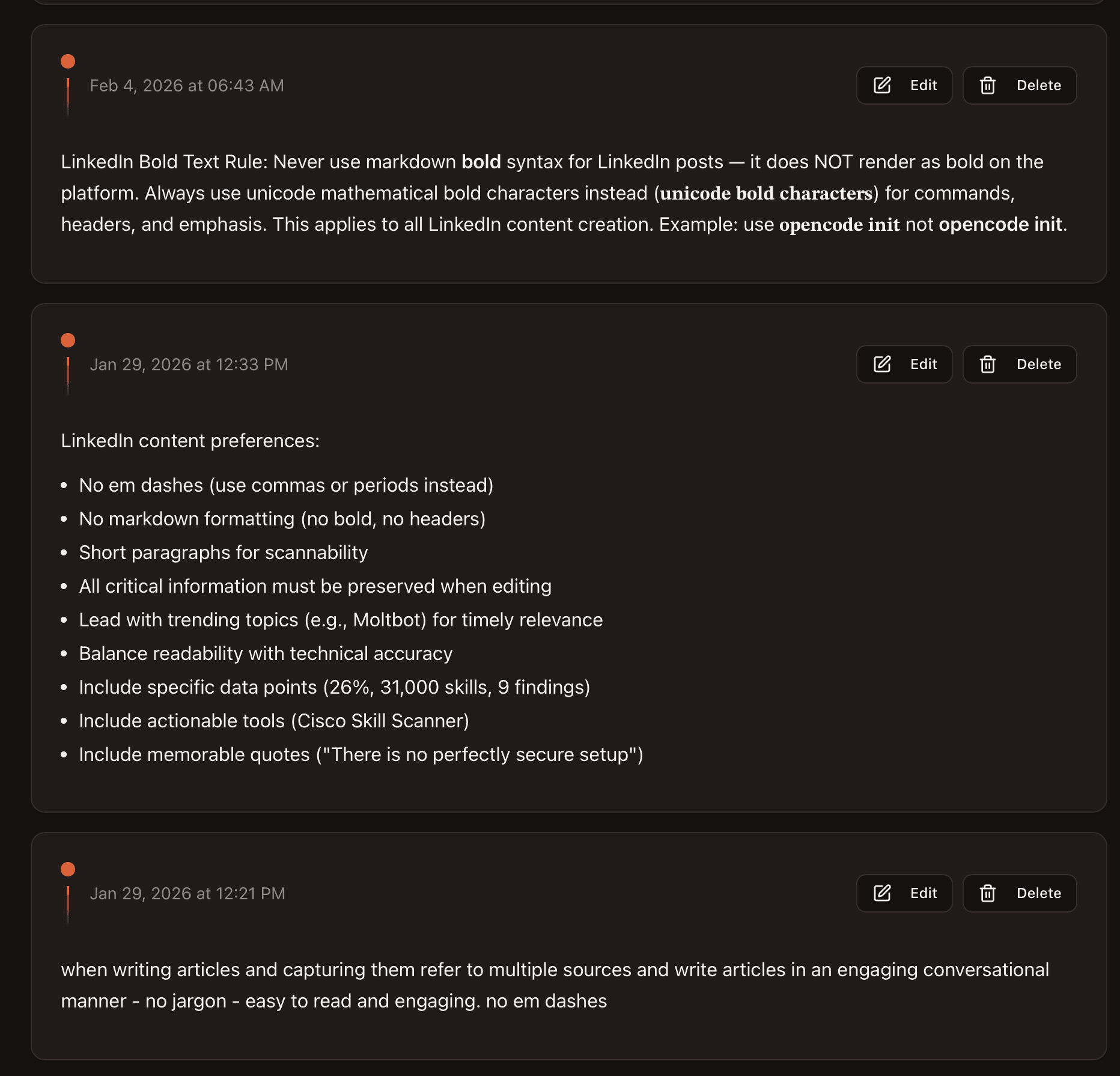
Add rules manually when needed
Most preferences are captured automatically, but you can also add specific rules yourself. This is useful for brand guidelines that might not come up naturally during content review:
- Brand rules — “Never use the word ‘synergy’” or “Always mention our free trial in promotional content”
- Formatting standards — “Use British English spelling” or “No hashtags on LinkedIn”
- Content strategy — “Prioritize educational content over promotional” or “Every post should have a clear call to action”
Tip: Think of automatic preferences as your AI observing how you work, and manual preferences as you telling it your house rules. Together, they create a complete picture of your brand voice.