Never Miss a Posting Day
Your Content Schedule is the command center for everything going out across every platform. See what is upcoming, preview exactly how posts will look, reschedule on the fly, and let AI fill the gaps.
By the end of this guide
- You will know how to use all three schedule views (Timeline, Gallery, Calendar)
- Preview exactly how posts will look on each platform before they go live
- Publish, reschedule, or cancel posts with one click
See your week at a glance
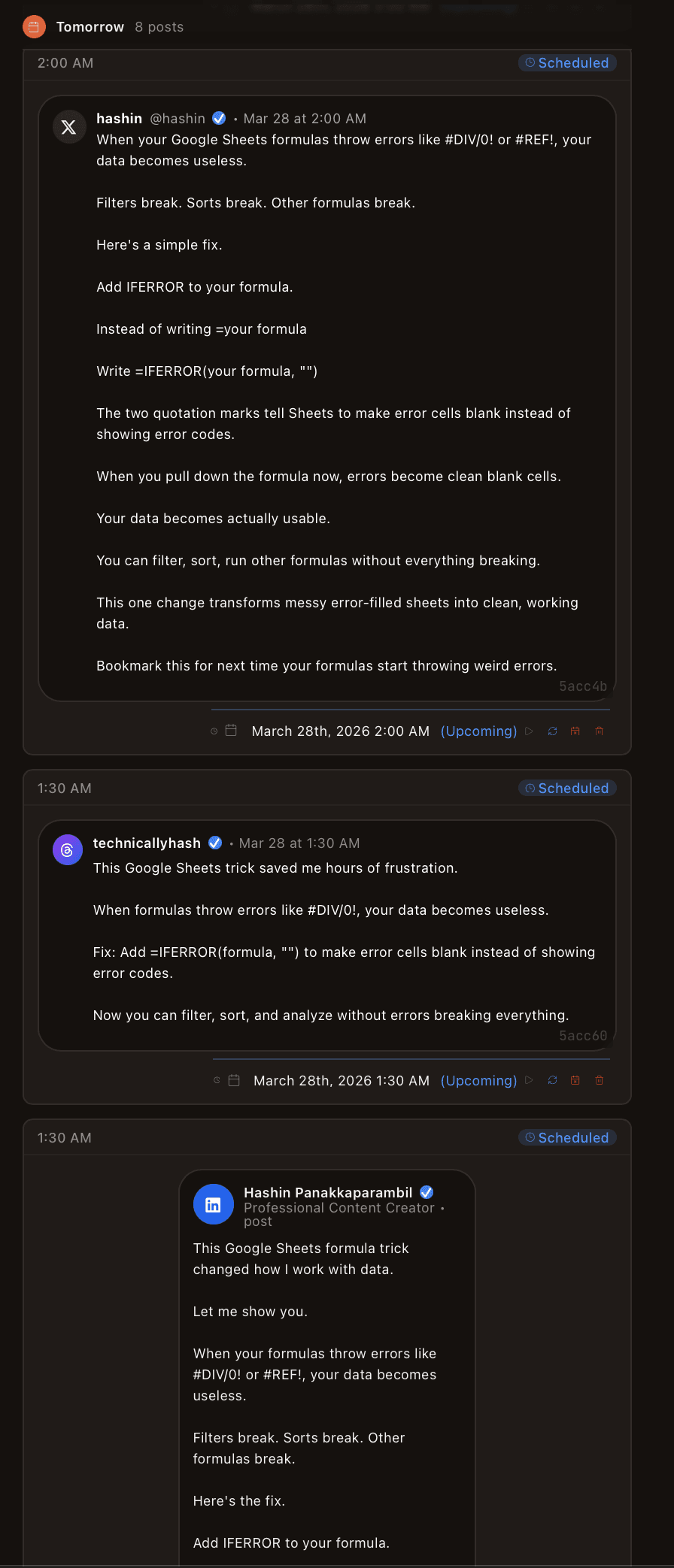
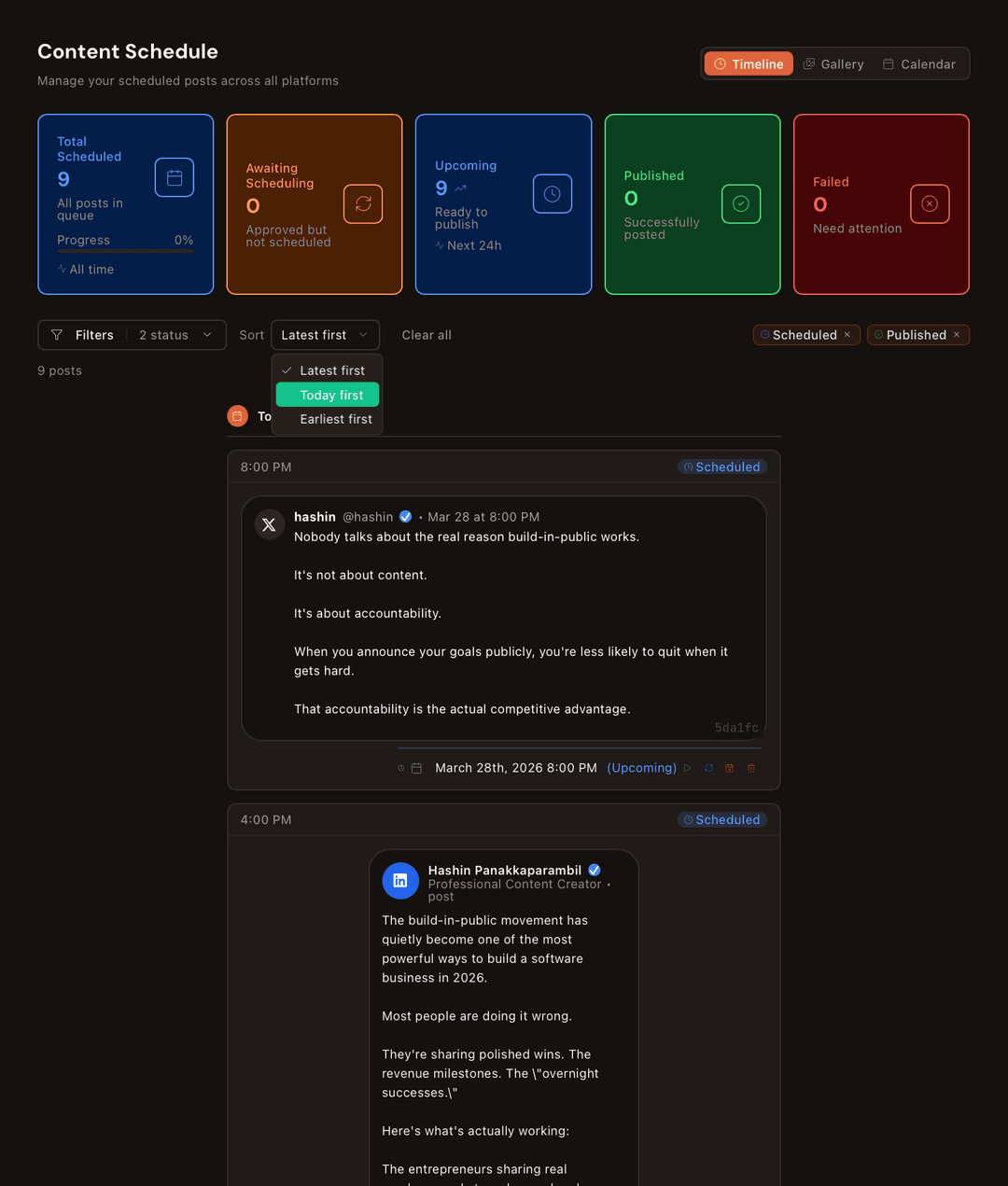
Open Content Schedule and the Timeline view shows everything that is coming up. At the top, five status cards give you the full picture at a glance:
Total Scheduled
All posts in queue
Awaiting
Approved but not scheduled
Upcoming
Ready to publish
Published
Successfully posted
Failed
Need attention
Below the cards, posts appear in chronological order. Each post shows the full content preview, platform icon, scheduled time, and status badge.
Three ways to view your schedule
Switch between views using the toggle at the top right. Each view shows the same content in a different layout:
Timeline
Chronological feed with full post previews. Best for reviewing what is going out next.
Gallery
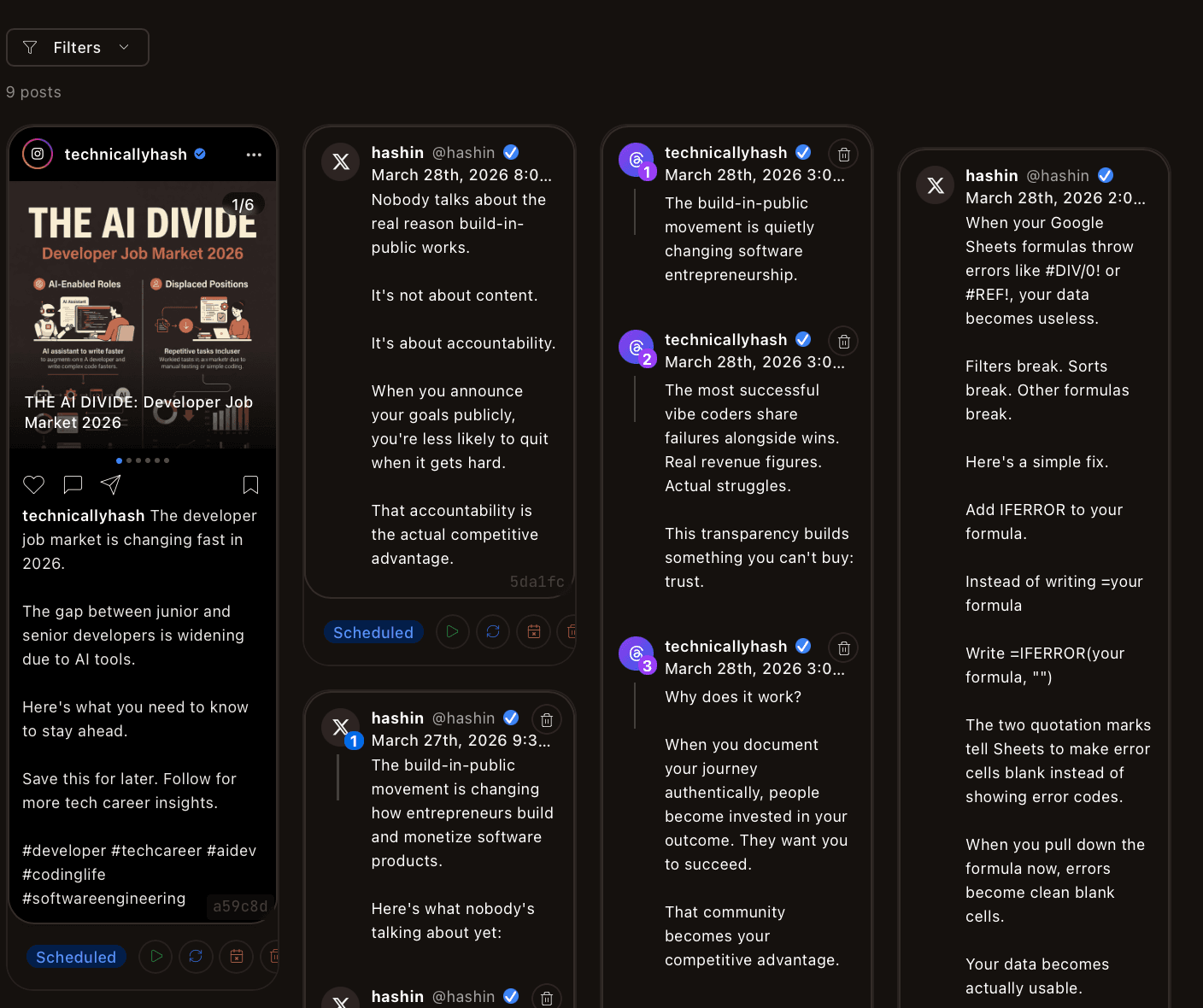
Card grid showing native platform previews side by side. Best for visual quality control.
Calendar
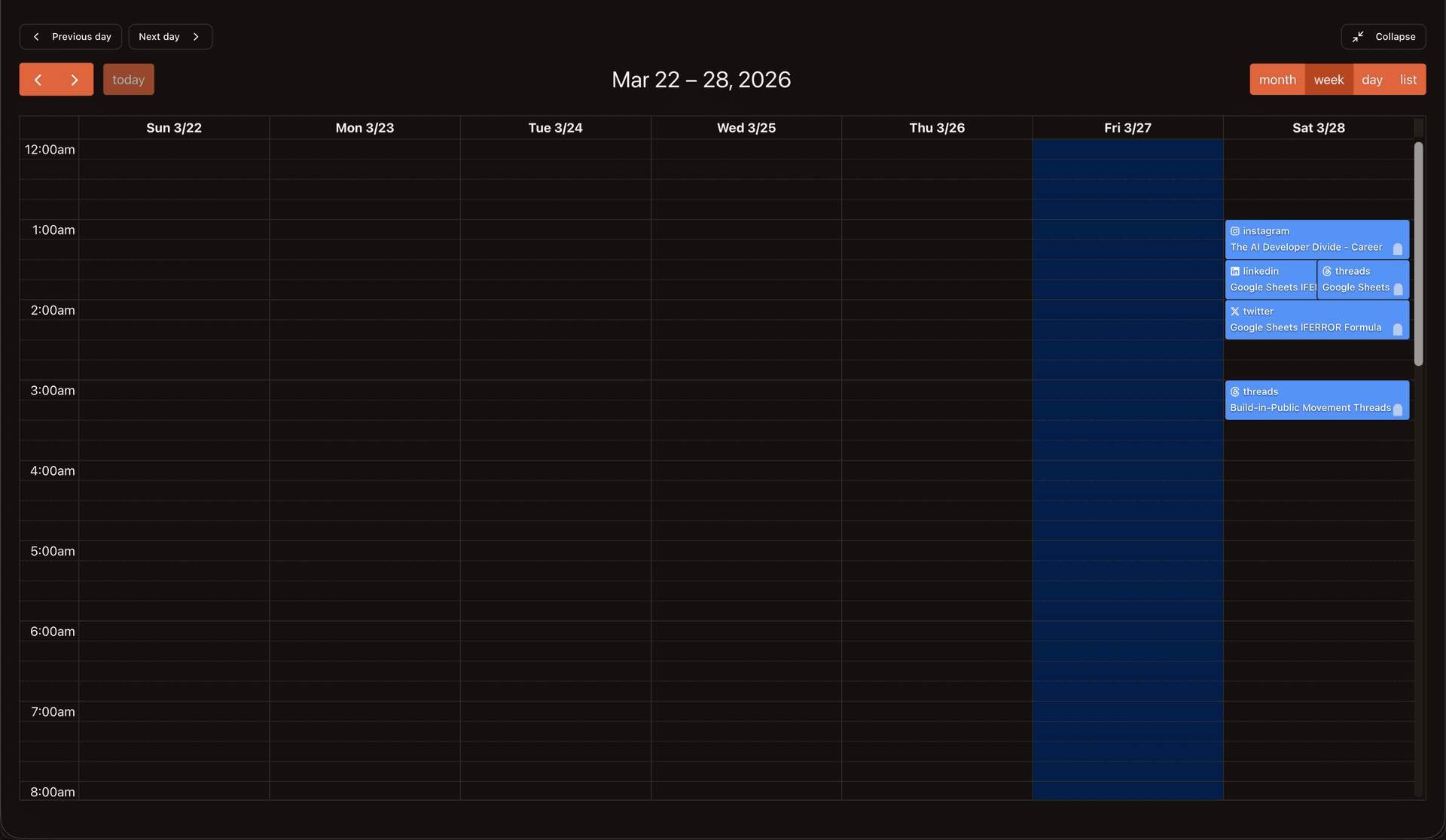
Weekly grid with posts in time slots. Best for spotting gaps and planning your cadence.
Gallery View
Calendar View
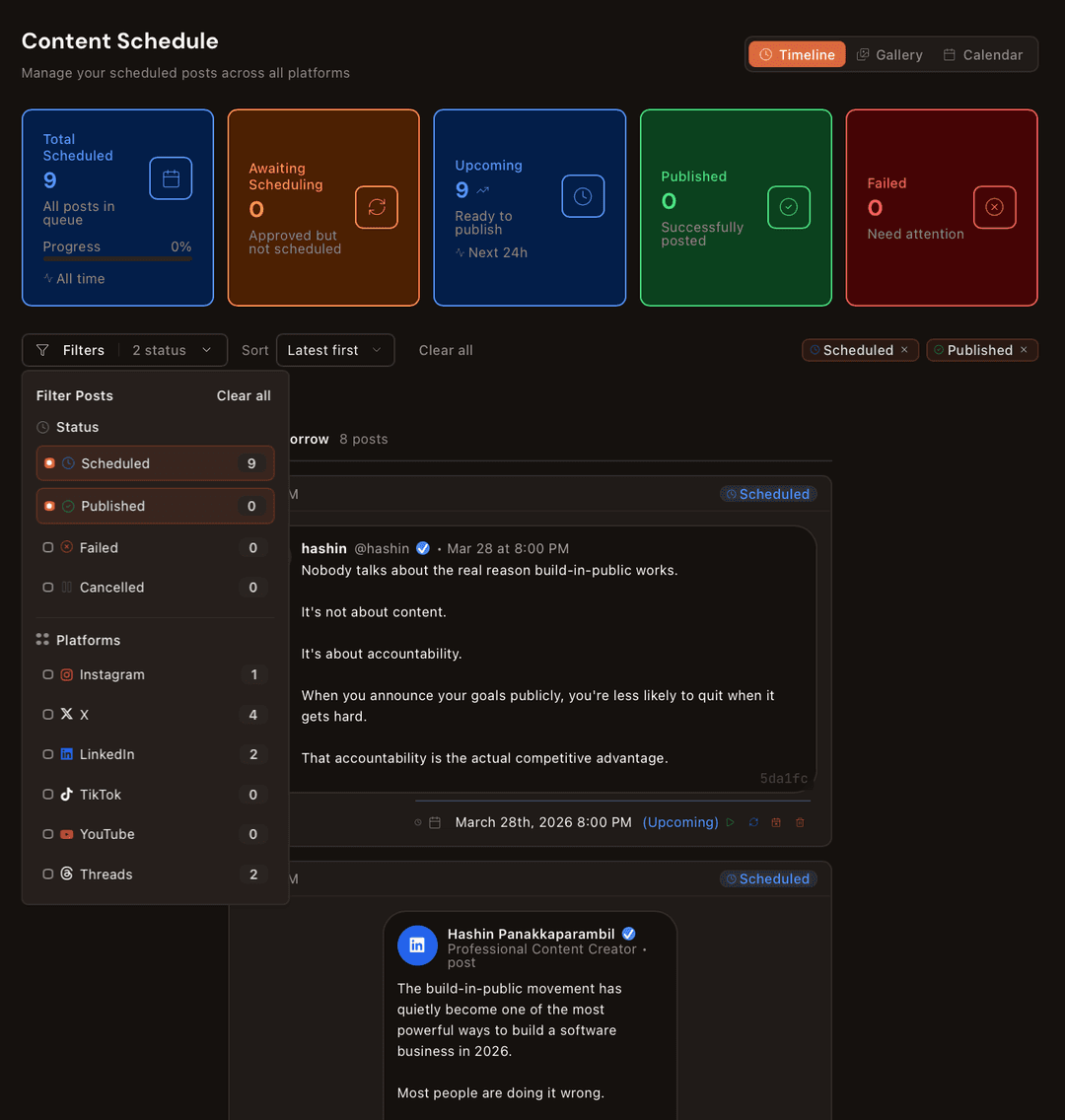
Filter by platform and status
Click Filters to narrow down what you see. Filter by status (Scheduled, Published, Failed, Cancelled) or by platform (Instagram, X, LinkedIn, TikTok, YouTube, Threads). Each option shows a count so you know exactly how many posts match.
Preview exactly how posts will look
Click any post to see a full native preview. For Instagram, you see the carousel slides, caption, and hashtags exactly as they will appear. For LinkedIn, X, and Threads, you see the formatted post with your profile picture and handle.
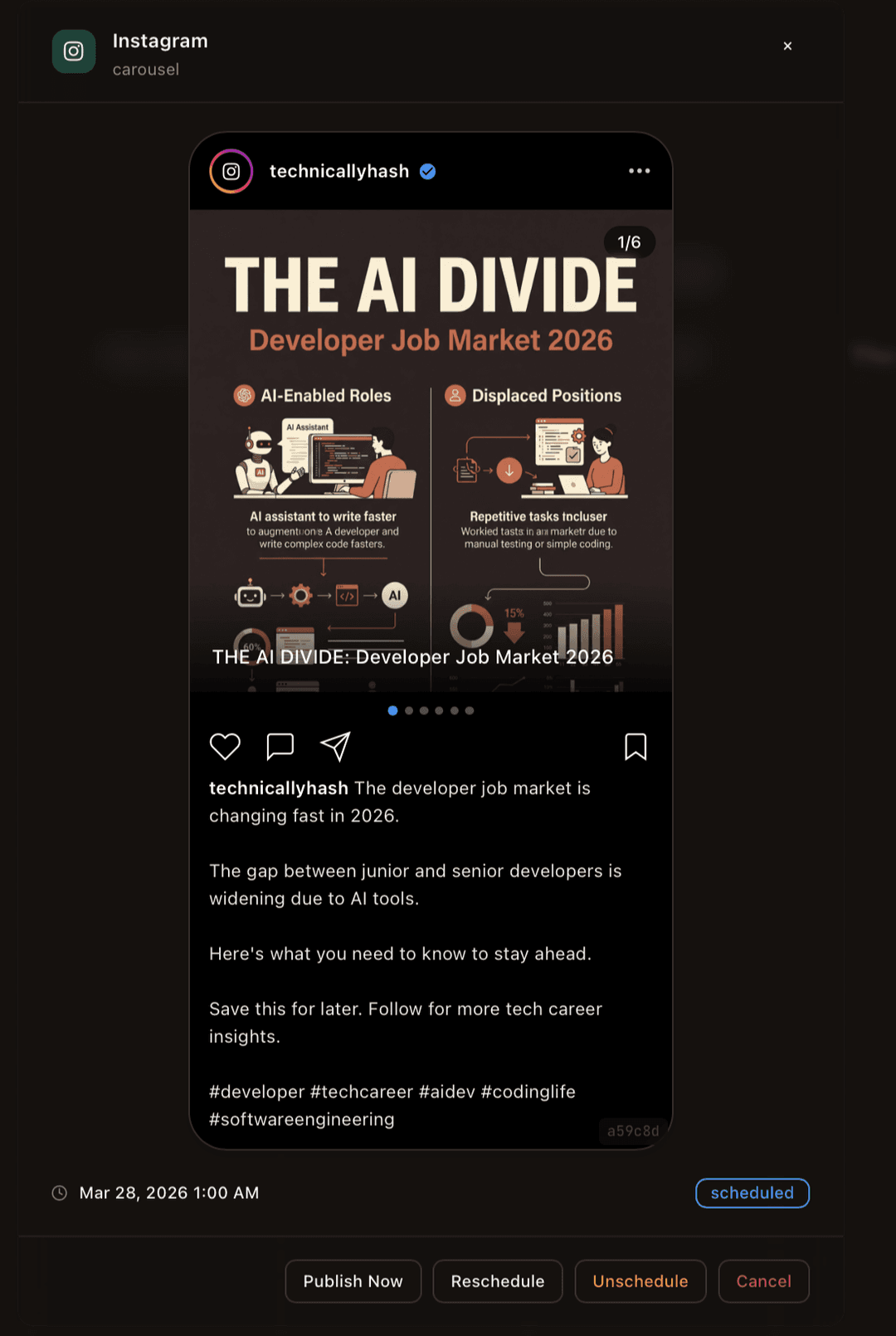
The preview shows the exact scheduled date and time, the "Scheduled" status badge, and four action buttons at the bottom.
Publish, reschedule, or cancel
Every scheduled post has four actions available from the preview:
Publish Now
Skip the schedule and post immediately to the platform
Reschedule
Pick a new date and time for this post
Unschedule
Remove from schedule but keep the content for later
Cancel
Remove the post from your schedule entirely
Let AI fill your calendar automatically
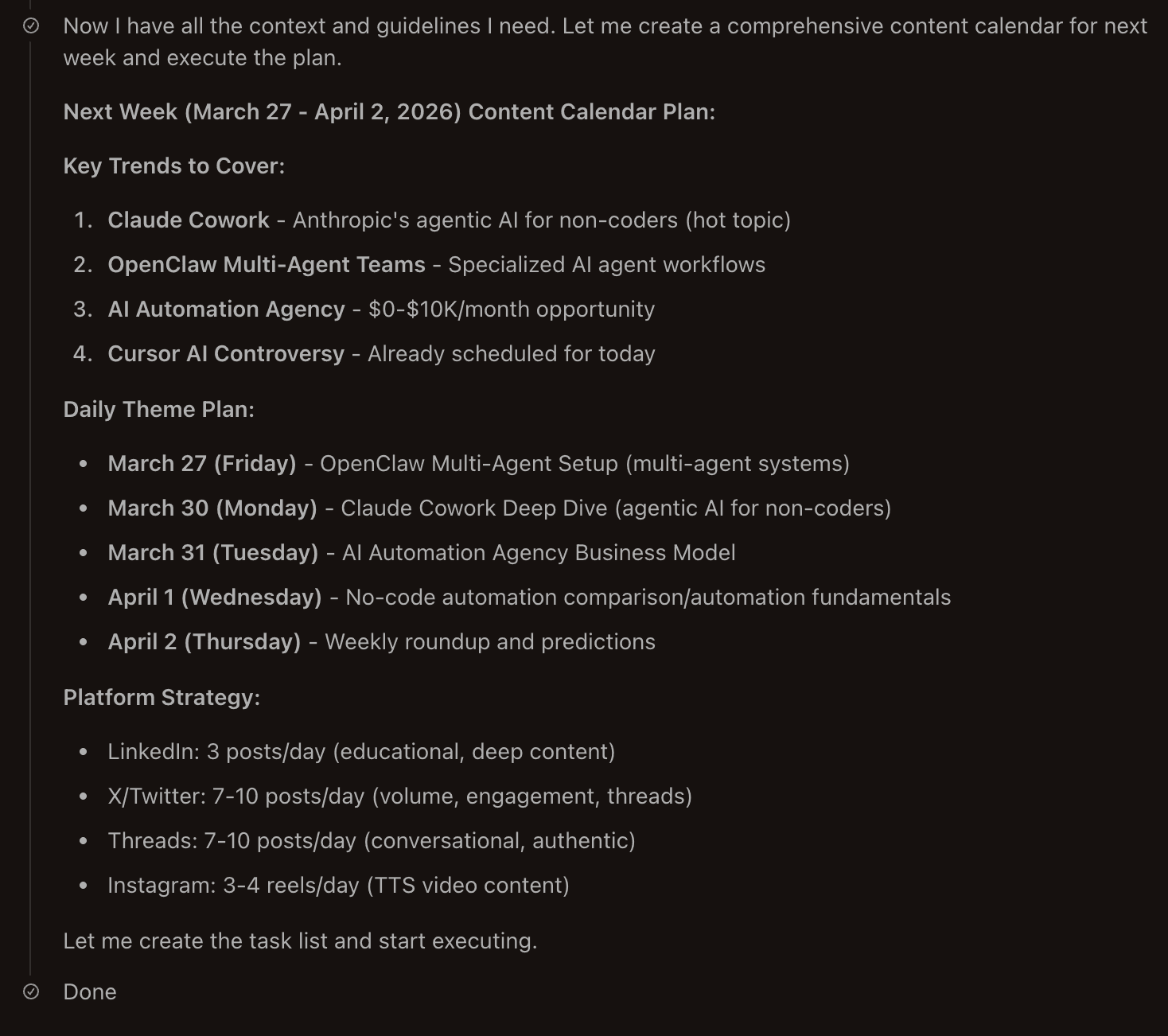
Spot gaps in your calendar? Open Agent Chat and ask the AI to create a content calendar for next week. The agent analyzes trending topics in your niche, plans daily themes, and creates a full batch of posts across all your platforms.
Frequently asked questions
How do I see all my scheduled posts in one place?
Can I filter my schedule by platform?
How do I reschedule a post?
Can I preview how my post will look before publishing?
Can Brand Brain fill my content calendar automatically?
What to do next
- Set up automated agent tasks to fill your calendar on a schedule Put Your Content on Autopilot
- Review and approve content before it gets scheduled Review & Approve Your Content
- Train your AI so every post sounds like you Train Your AI to Write Like You