Own the LinkedIn Feed
Turn any topic into a multi-slide LinkedIn carousel that positions you as the expert. Pick an idea, generate branded PDF slides, review each one, and publish directly to LinkedIn.
By the end of this guide
- You will have created a branded multi-slide LinkedIn carousel
- Reviewed slides and regenerated any that need work
- Scheduled or published the carousel directly to LinkedIn
Pick a topic and select LinkedIn Carousel
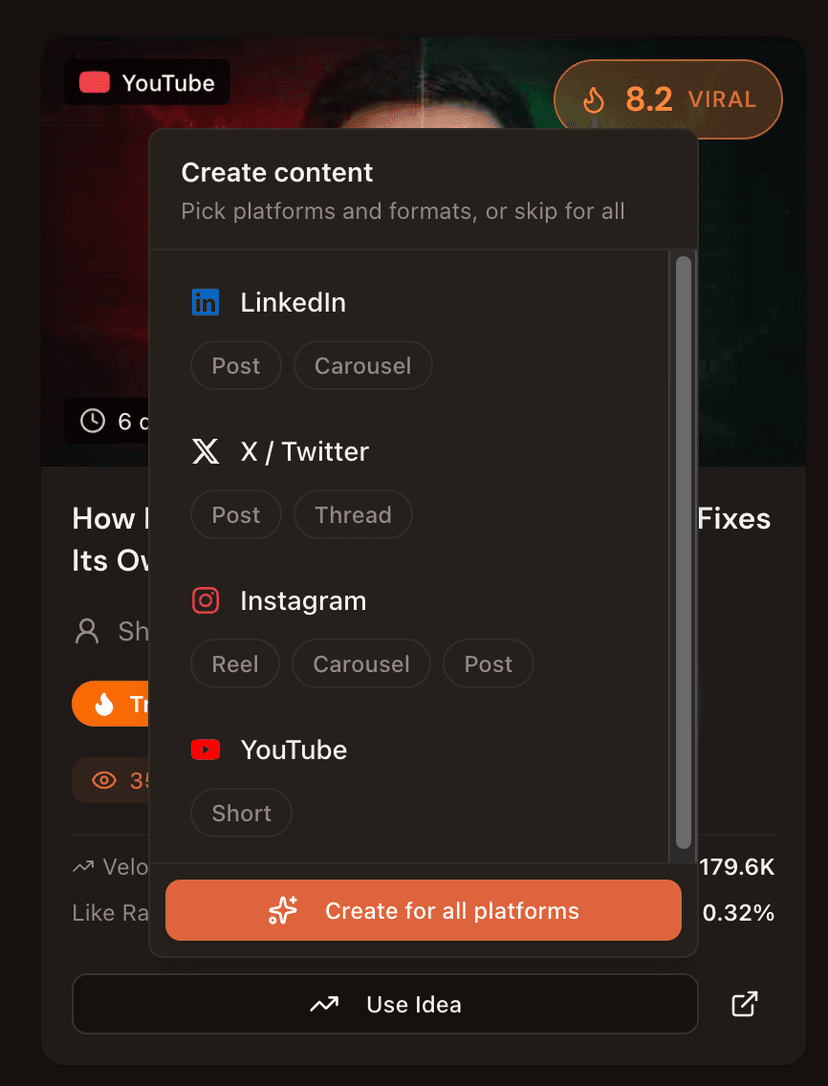
Head to Discovery and find a trending topic, then click Use Idea. Or open Agent Chat and describe what you want the carousel to cover.
In the popover, select LinkedIn as the platform and pick Carousel from the format options. You can also select other platforms at the same time to create matching content for Instagram, X, and YouTube in one go.
Your agent creates the carousel
The AI agent researches your topic, applies your brand voice and niche context, and generates a full LinkedIn carousel. When the content is ready, the chat panel slides to the right and the carousel card appears in the content panel on the left.
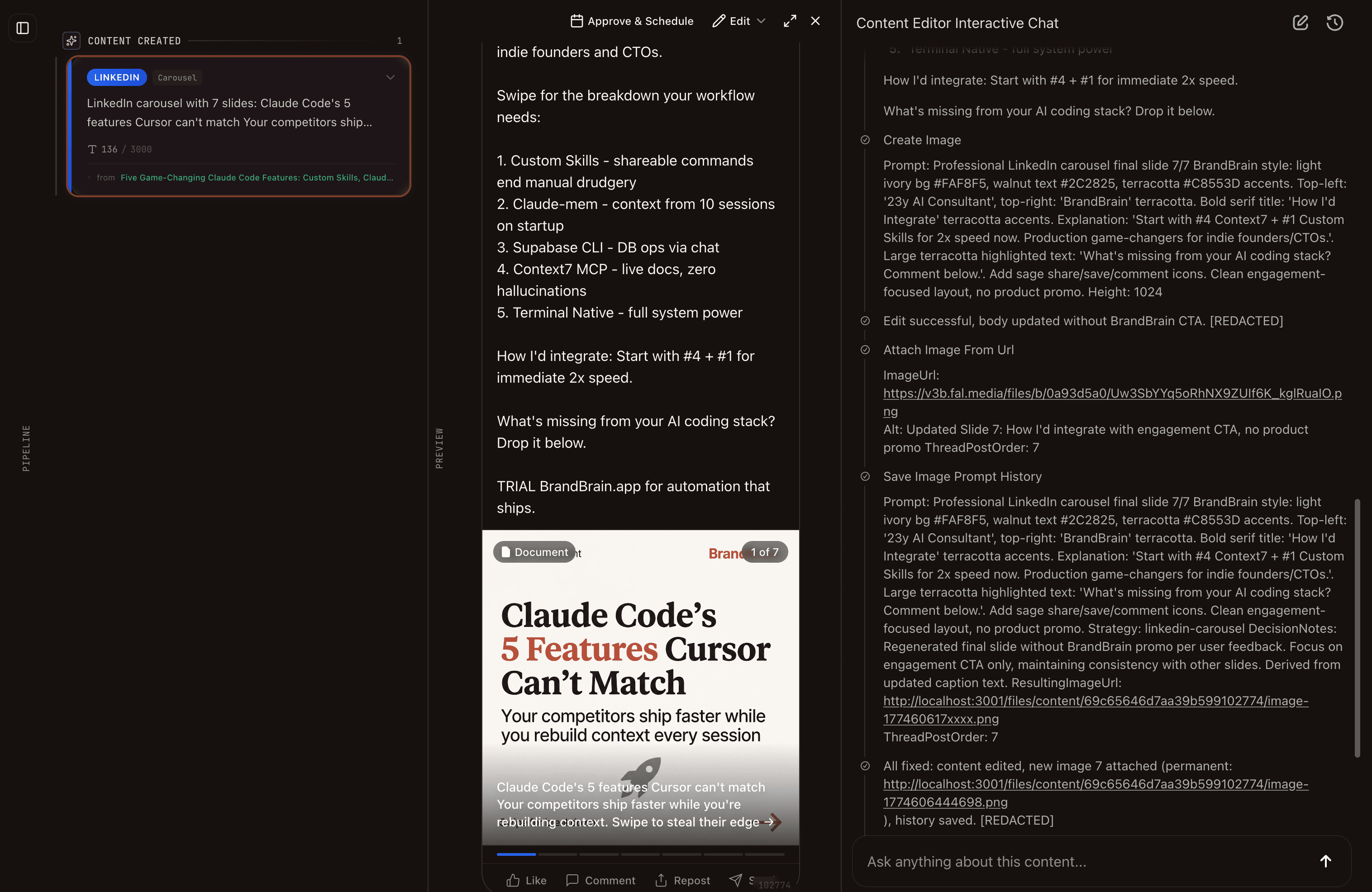
The left panel shows your LinkedIn carousel card with a preview of the slides. The right side shows the full chat history where you can continue refining the content or ask the agent to make changes.
Preview your slides in the chat panel
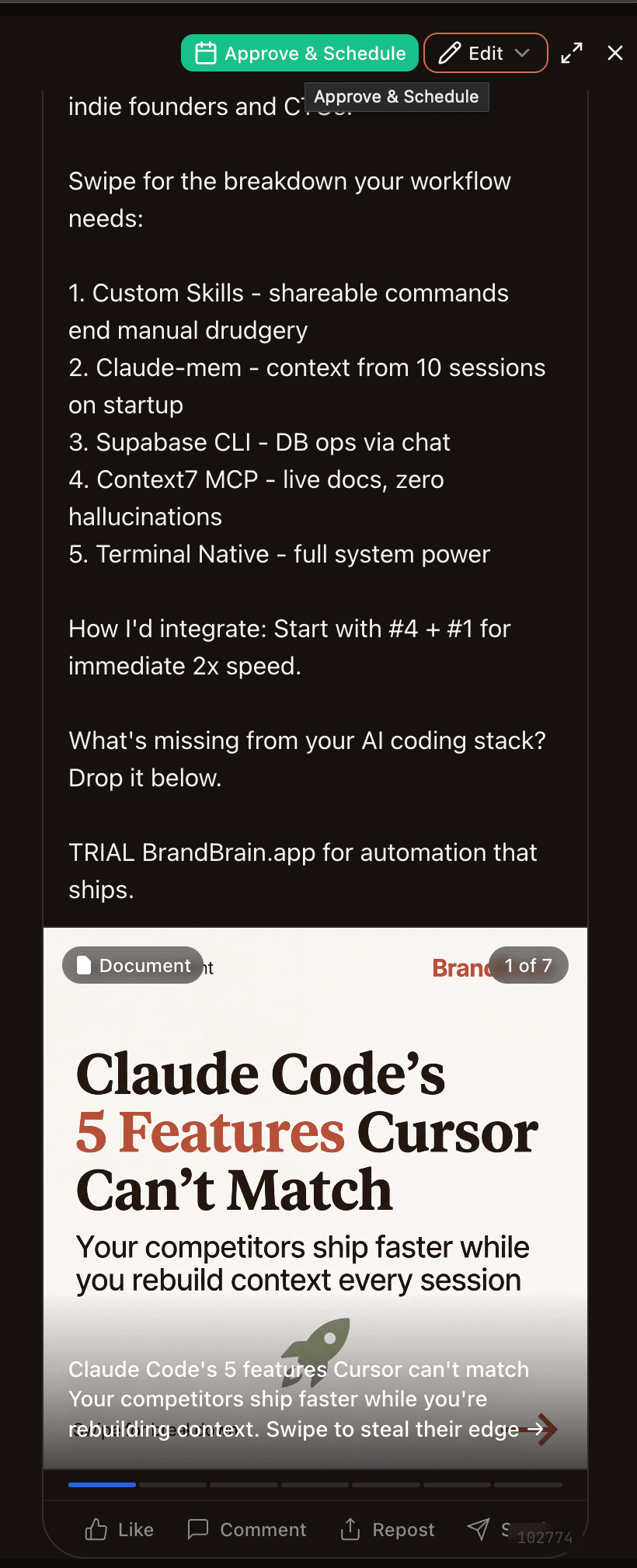
Click the carousel card to see a full preview of your slides. Each slide shows the generated image with your brand colors, the post text, and options to approve or schedule. Swipe through to check every slide before publishing.
Review and regenerate individual slides
Your carousel also appears on the Content page. Open it to see every slide with its text, image prompt, and generated image. If any slide does not look right, hit Regenerate to get a fresh version of just that slide without recreating the entire carousel.
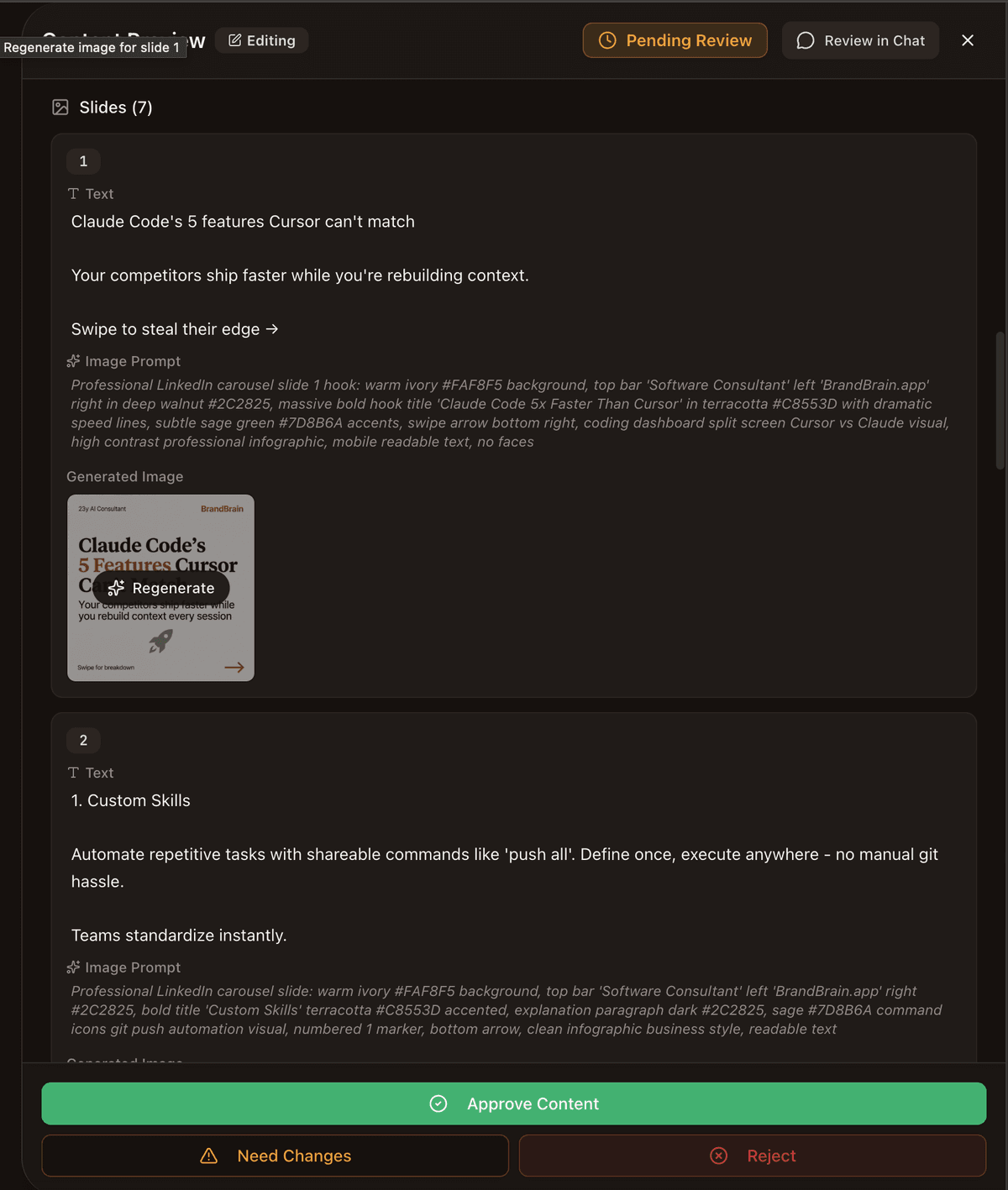
Regenerate
Get a new version of any individual slide
Approve Content
Send the carousel to your publishing queue
Need Changes
Add specific feedback for the AI to fix
Schedule or publish directly
Approve the carousel and it moves to your Content Schedule. The PDF document is generated automatically from your slides. You can see the carousel in the timeline view, drag to reschedule, or publish immediately to your connected LinkedIn account.
LinkedIn carousels are uploaded as native PDF documents through the LinkedIn API, so they appear as swipeable slide decks in the feed, not as image posts or links.
Why LinkedIn carousels work
more engagement than text-only posts
slides per carousel
PDF format, no external links needed
Tips for high-performing LinkedIn carousels:
- Lead with a bold hook slide that makes people stop scrolling
- Keep each slide to one idea or takeaway
- Use numbered lists or step-by-step frameworks
- End with a CTA: follow, comment, or visit your link
- Repurpose blog posts, video scripts, or threads into slides
- Post carousels 2-3 times per week for best LinkedIn reach
Frequently asked questions
How do I create a carousel post on LinkedIn?
What size should a LinkedIn carousel be?
How many slides should a LinkedIn carousel have?
Can you schedule LinkedIn carousel posts?
How to create a LinkedIn carousel without Canva?
Do LinkedIn carousels get more engagement?
What to do next
- Create Instagram carousels from the same topics Instagram Carousels
- Repurpose one video or article into posts for every platform Repurposing Guide
- Set up automated content creation on a schedule Put Your Content on Autopilot