Put Your Content on Autopilot
Set up automated tasks so your AI agents create, review, and schedule content while you focus on other things. Configure it once, and your content machine runs itself.
Open the Tasks page
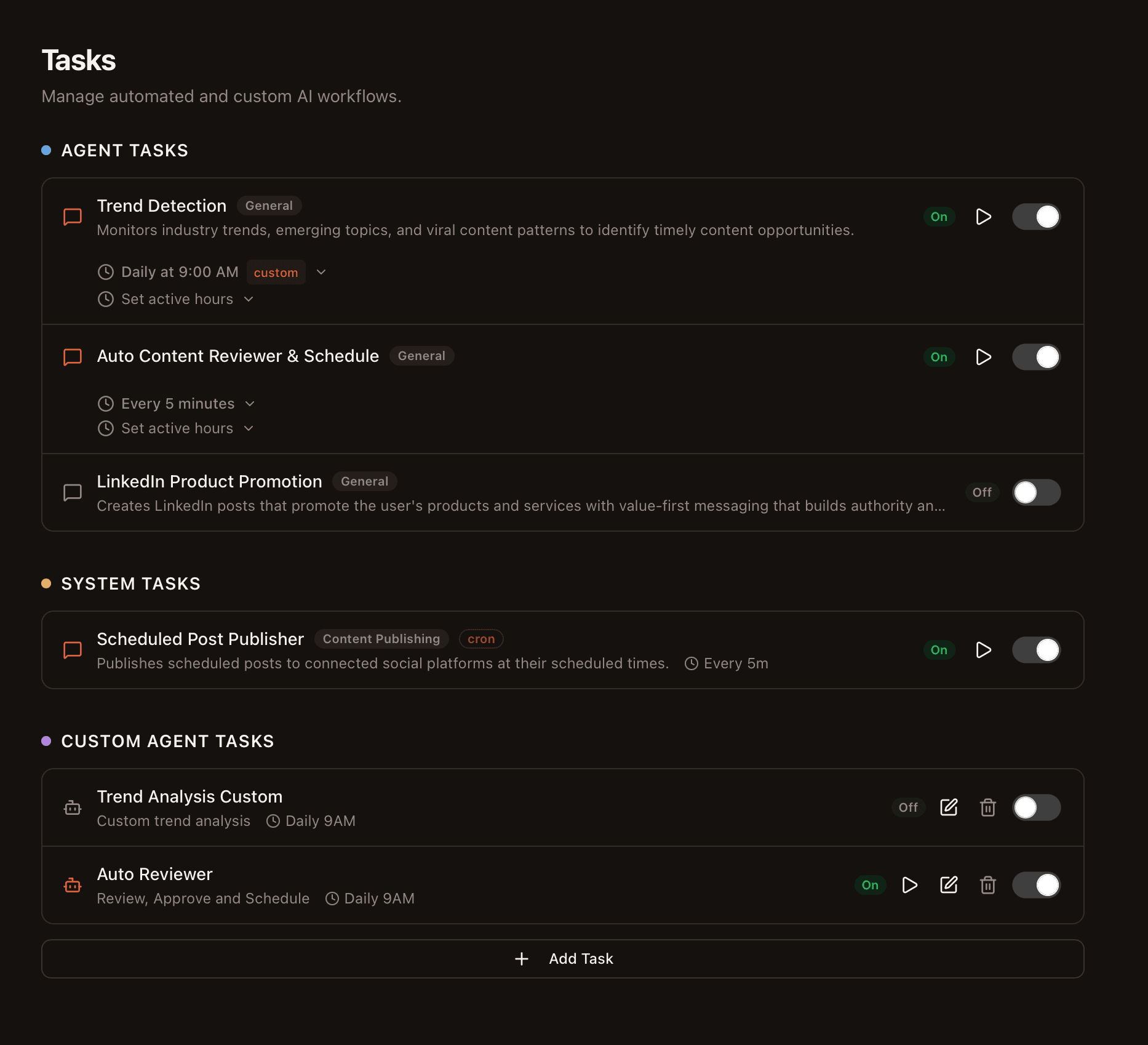
Click Tasks in the sidebar to see your automation dashboard. The page is organized into three sections:
- Agent Tasks — pre-built automations like Trend Detection and Auto Content Reviewer that come ready to use
- System Tasks — background tasks that keep things running (like the Scheduled Post Publisher)
- Custom Agent Tasks — your own automated workflows with custom prompts and schedules
Customize a built-in Agent Task
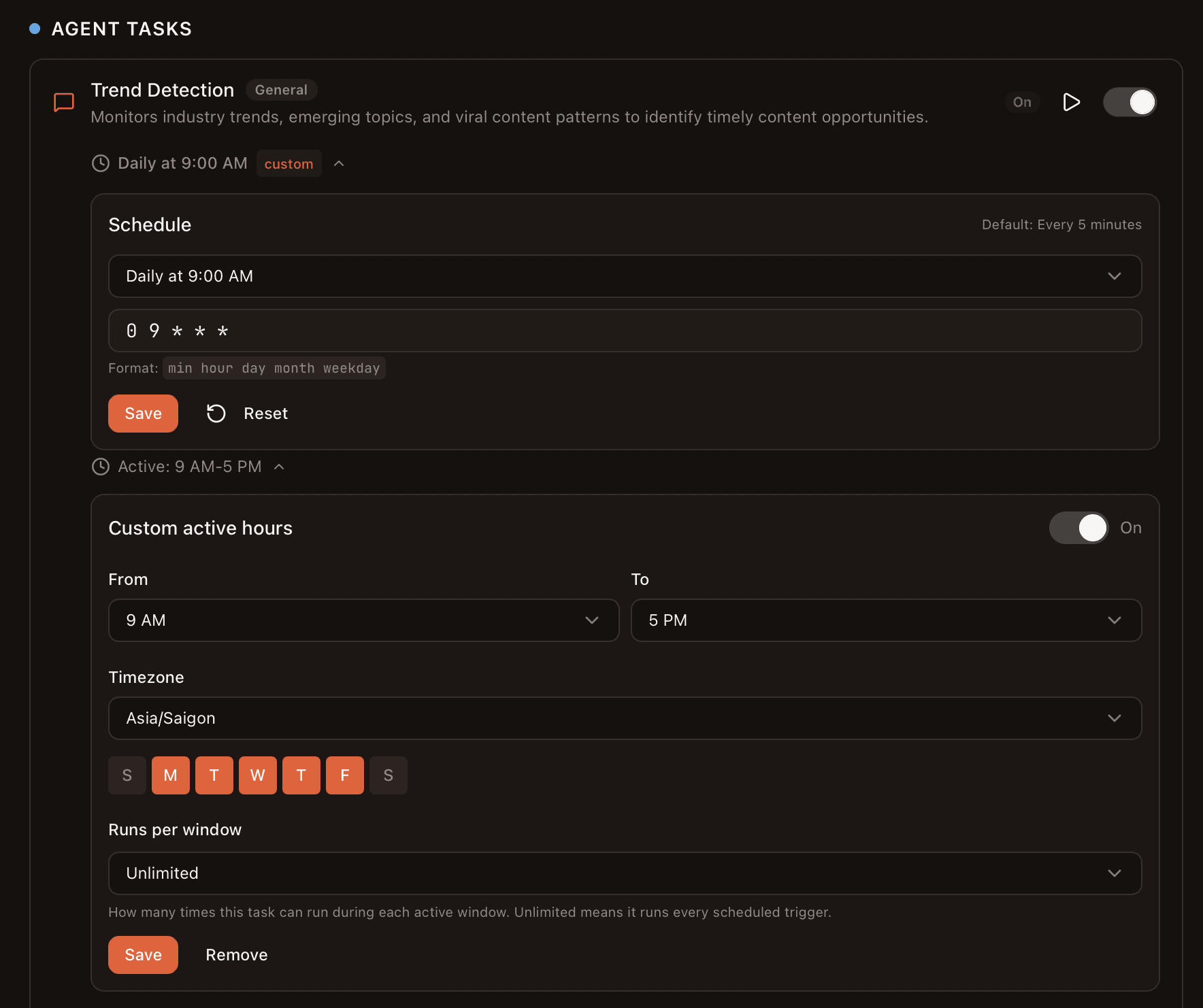
Agent Tasks come pre-configured, but you can customize when they run. Click on any task to expand its settings:
- Schedule — choose from presets like “Daily at 9:00 AM” or “Every 5 minutes”, or write a custom cron expression
- Active Hours — set a time window (e.g. 9 AM to 5 PM), timezone, and which days of the week the task should run
- Runs per window — limit how many times a task runs during each active window, or set it to unlimited
Tip: Use the On/Off toggle on the main Tasks page to enable or disable any task without deleting its configuration.
Create your own Custom Agent Task
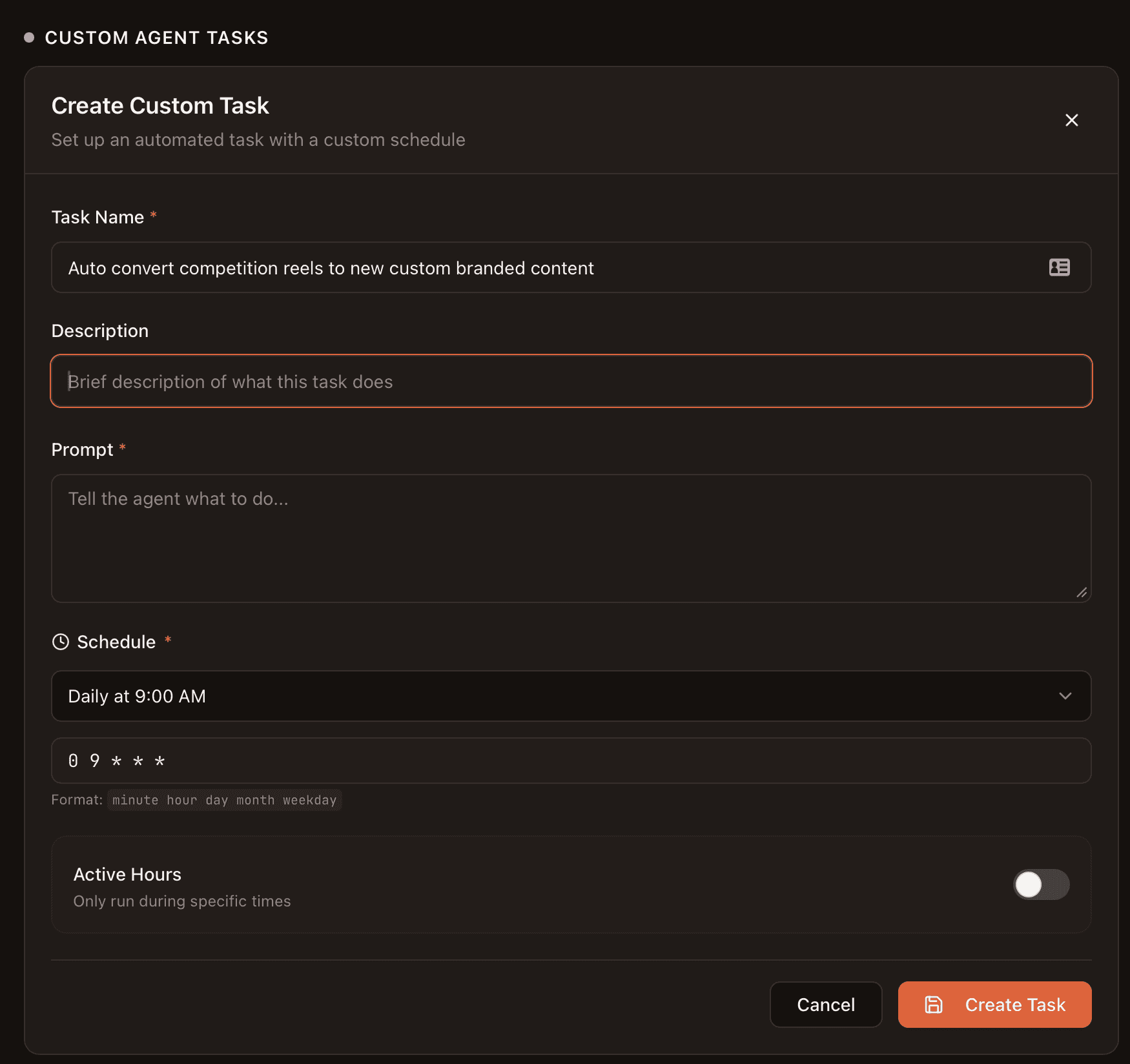
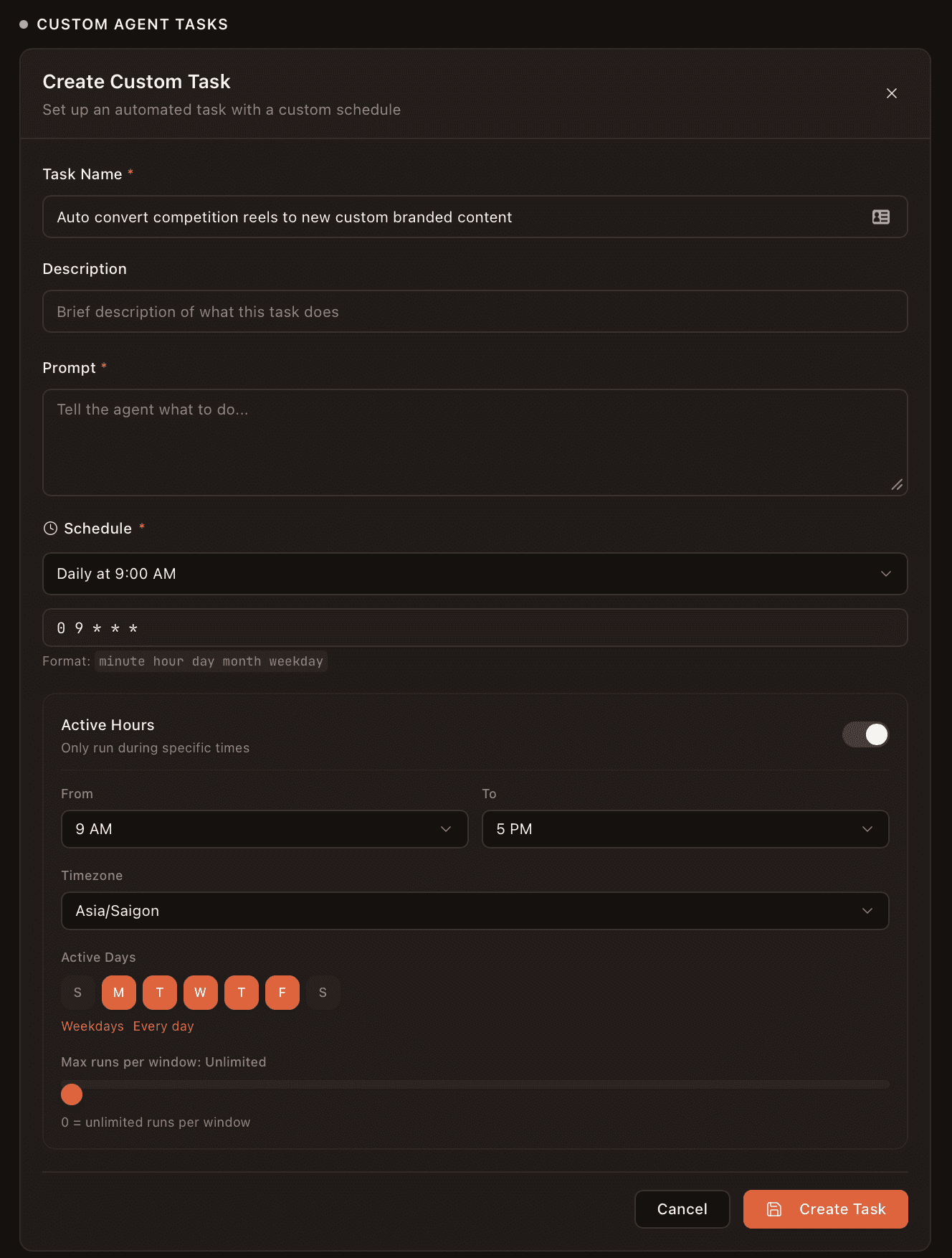
Want something the built-in tasks don't cover? Click + Add Task at the bottom of the page to create your own. Fill in:
Task Name
A clear name so you remember what it does (e.g. "Morning Competitor Analysis")
Prompt
Tell the agent exactly what to create. Be specific about topics, platforms, tone, and format.
Schedule
Pick a preset (Daily at 9 AM, Every 6 hours, Weekly) or write a custom cron expression.
Active Hours (optional)
Restrict runs to specific hours, days, and timezone. Set max runs per window.
Run any task on demand
Don't want to wait for the schedule? Every task has a play button that triggers an immediate run. This is useful for:
- Testing a new custom task before relying on its schedule
- Getting content created right now when you need it outside the normal schedule
- Re-running a failed task after fixing the issue
Monitor your automation results
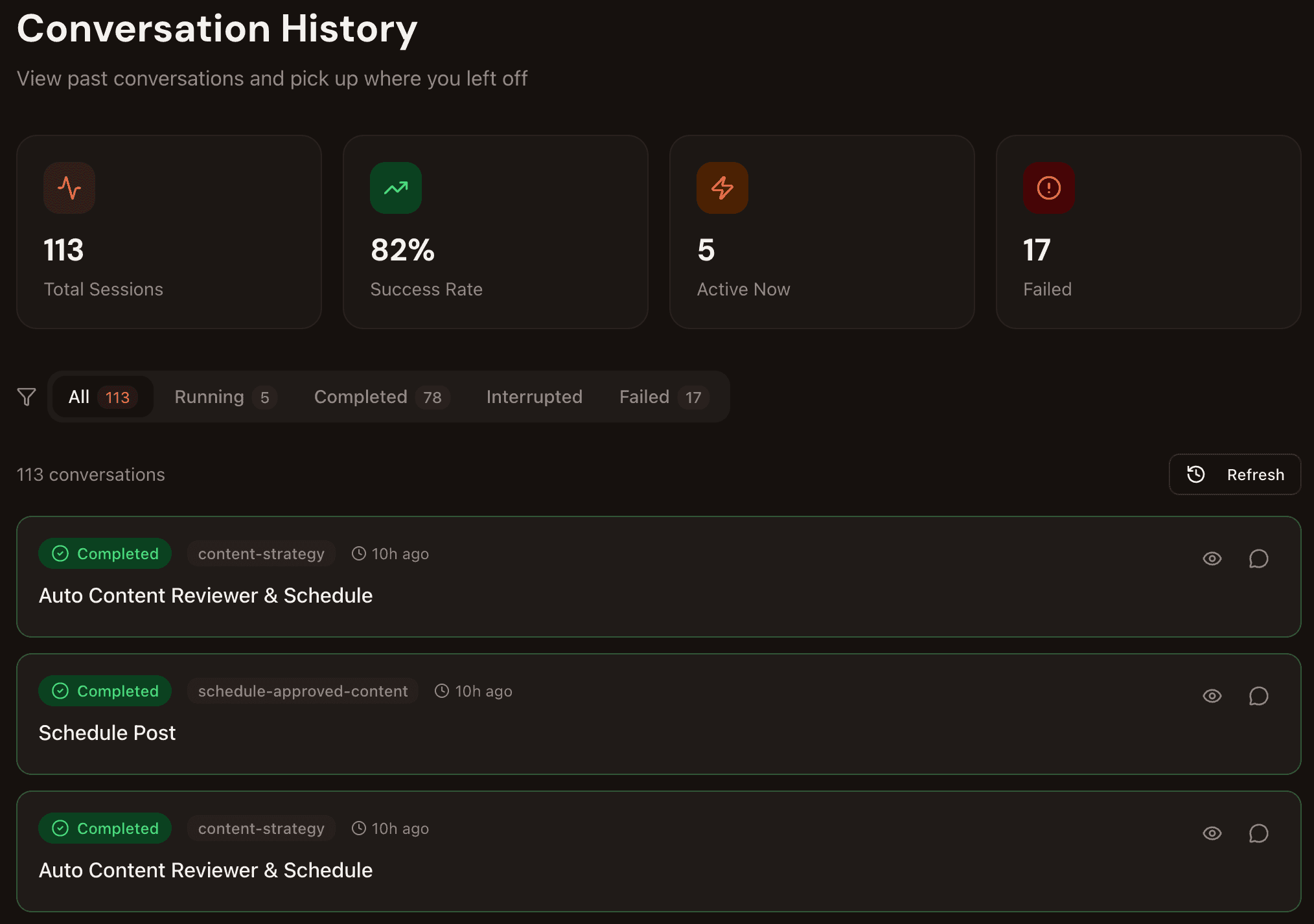
Open Conversation History to see everything your agents have been doing. The dashboard shows:
Total Sessions
How many times your tasks have run
Success Rate
Percentage of runs that completed
Active Now
Tasks currently running
Failed
Runs that hit an error
Filter by status (Running, Completed, Interrupted, Failed) and click into any session to see exactly what the agent created. All generated content flows into your content queue for review.
Ideas to get you started
Morning LinkedIn Drafts
"Create 3 LinkedIn posts about [your niche] using my latest knowledge sources"
Weekly Trend Scan
"Research trending topics in [your industry] and create content ideas for each platform"
Auto Repurpose
"Take my most recent approved content and repurpose it for Instagram and Threads"