Review & Manage Your Content Queue
Every piece of content your AI creates lands in the review queue. Review manually to train your AI, use the chat panel for batch review, or go fully hands-free with auto-review. The more you review, the less you need to.
Browse your content queue
Open Content in the sidebar to see everything your AI agents have created. Content is organized by review status:
Pending Review
Fresh content waiting for your review. This is where you start.
Approved
Content you have approved and is ready to be scheduled or published.
Rejected
Content that did not make the cut. You can revisit and rework it anytime.
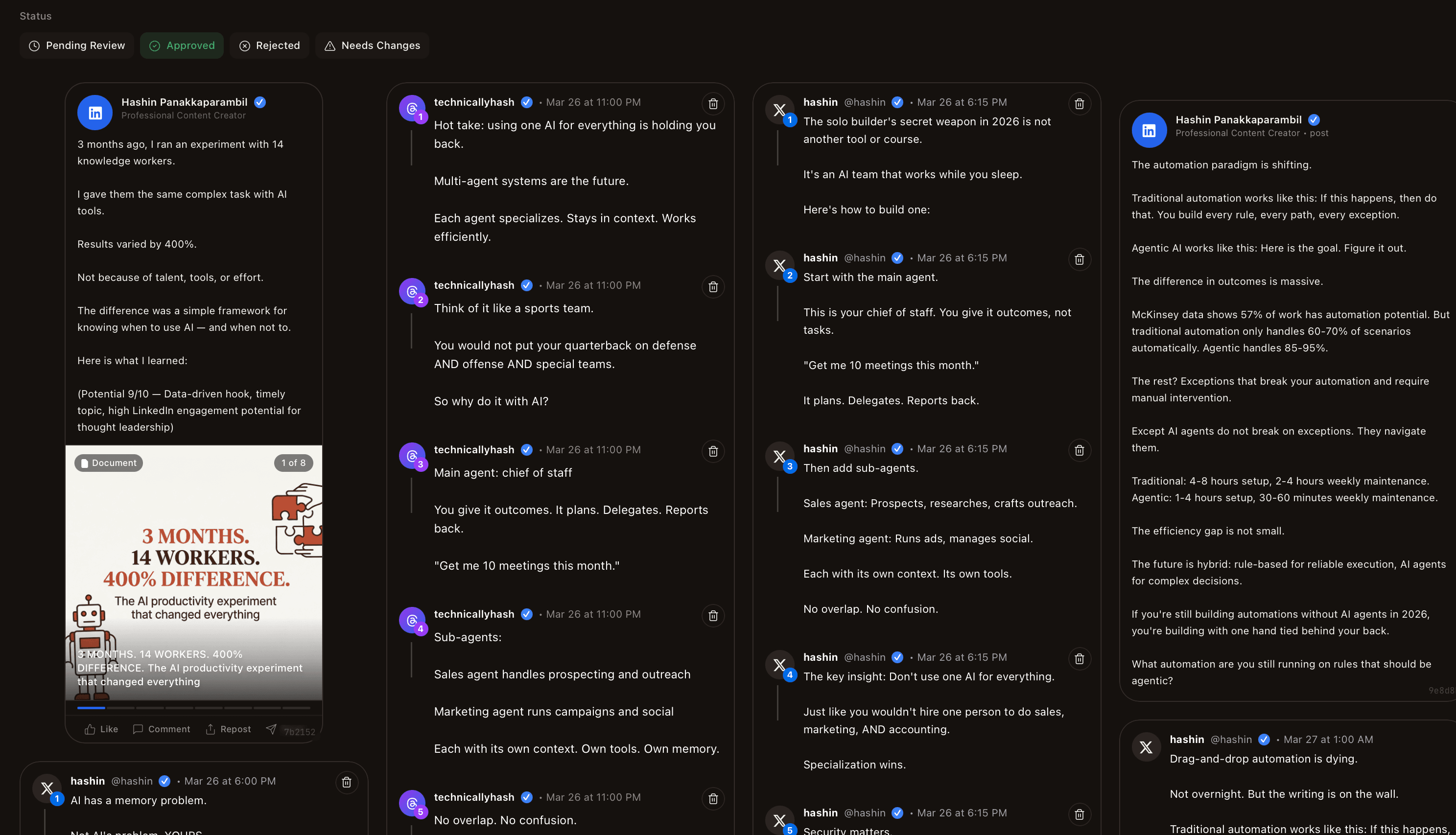
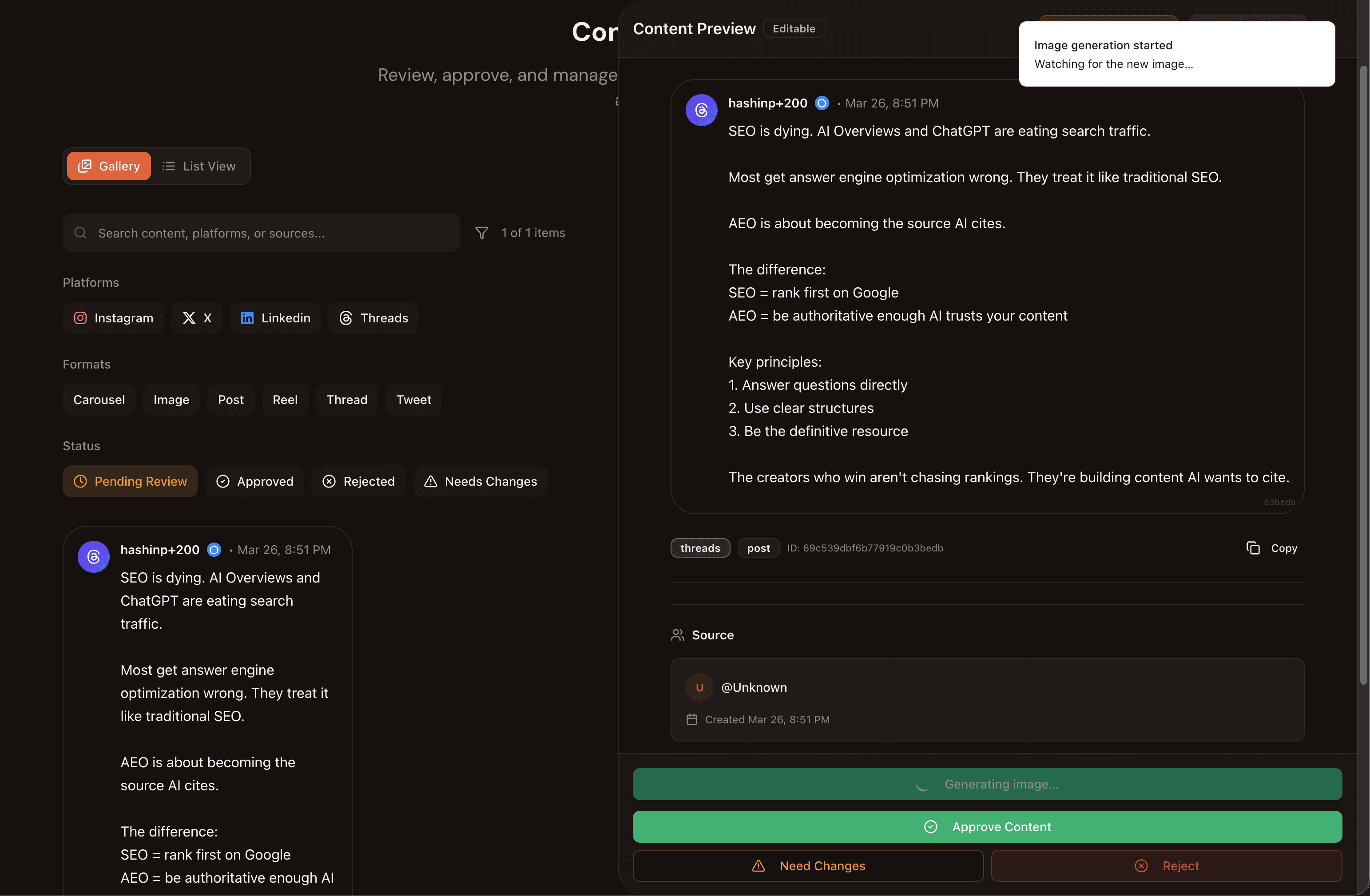
The gallery view shows visual previews of each piece with platform badges. Use the filters at the top to narrow by platform (Instagram, LinkedIn, X, Threads), format (Carousel, Image, Post, Reel, Thread, Tweet), or status.
Review from the content panel
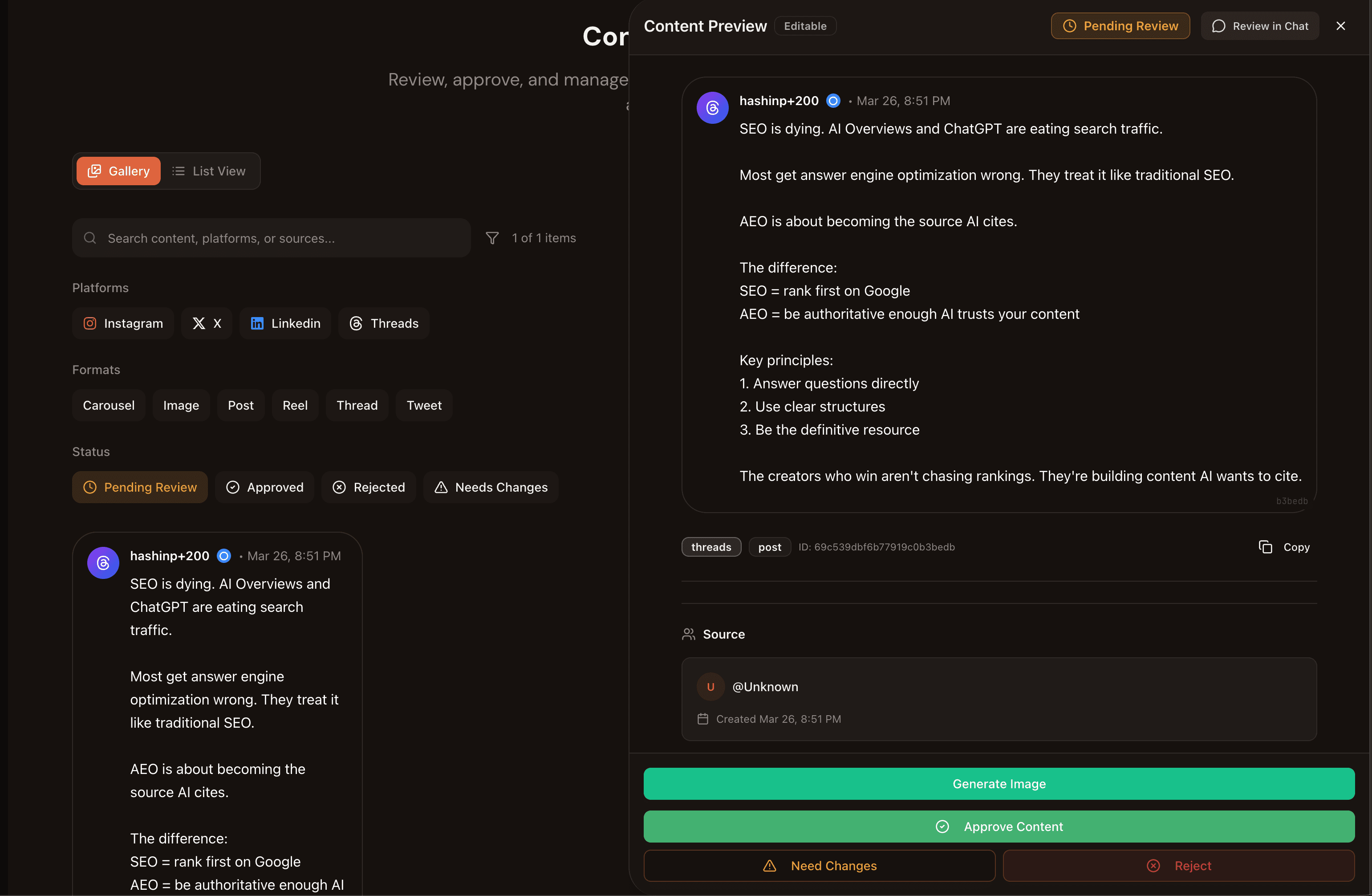
Click any content card to open the review panel. You will see the full content preview with four actions at the bottom:
Generate Image
Create a visual for the content right from the review screen. The AI generates an image that matches the post.
Approve Content
Mark content as ready. It moves to your publishing calendar for scheduling.
Need Changes
Flag content with specific feedback. The AI can auto-fix it based on your notes.
Reject
Remove content that does not meet your standards. Add a reason so the AI learns.
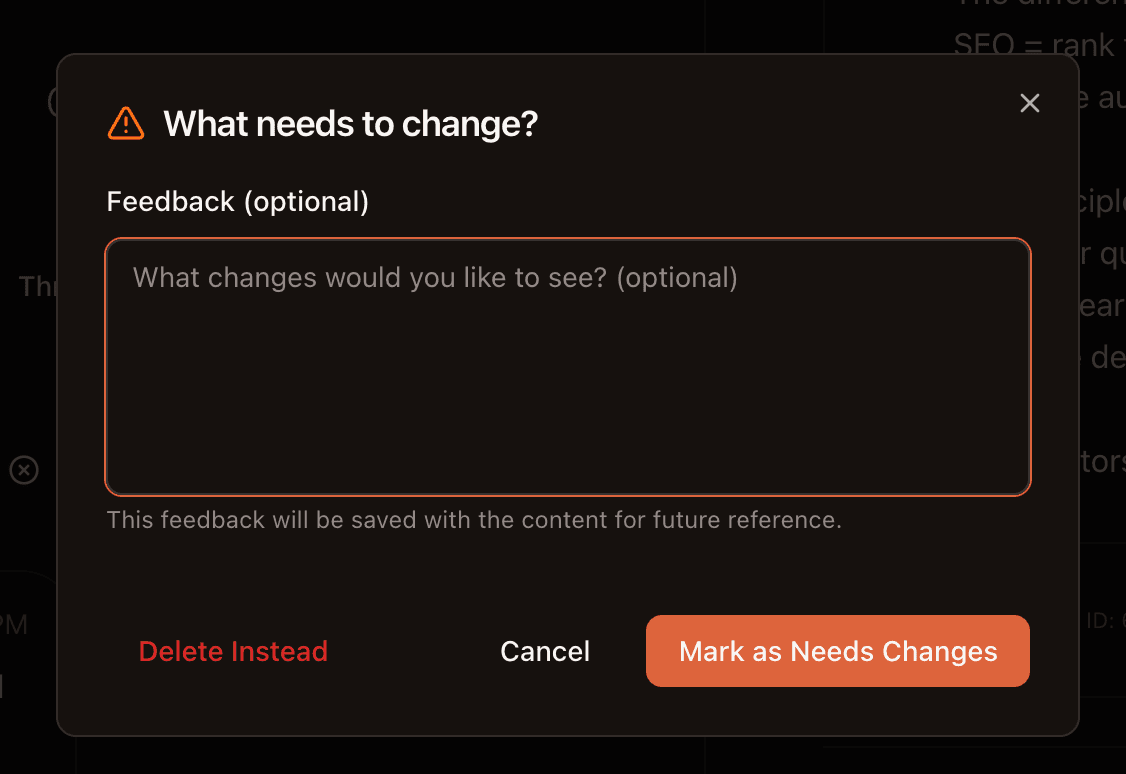
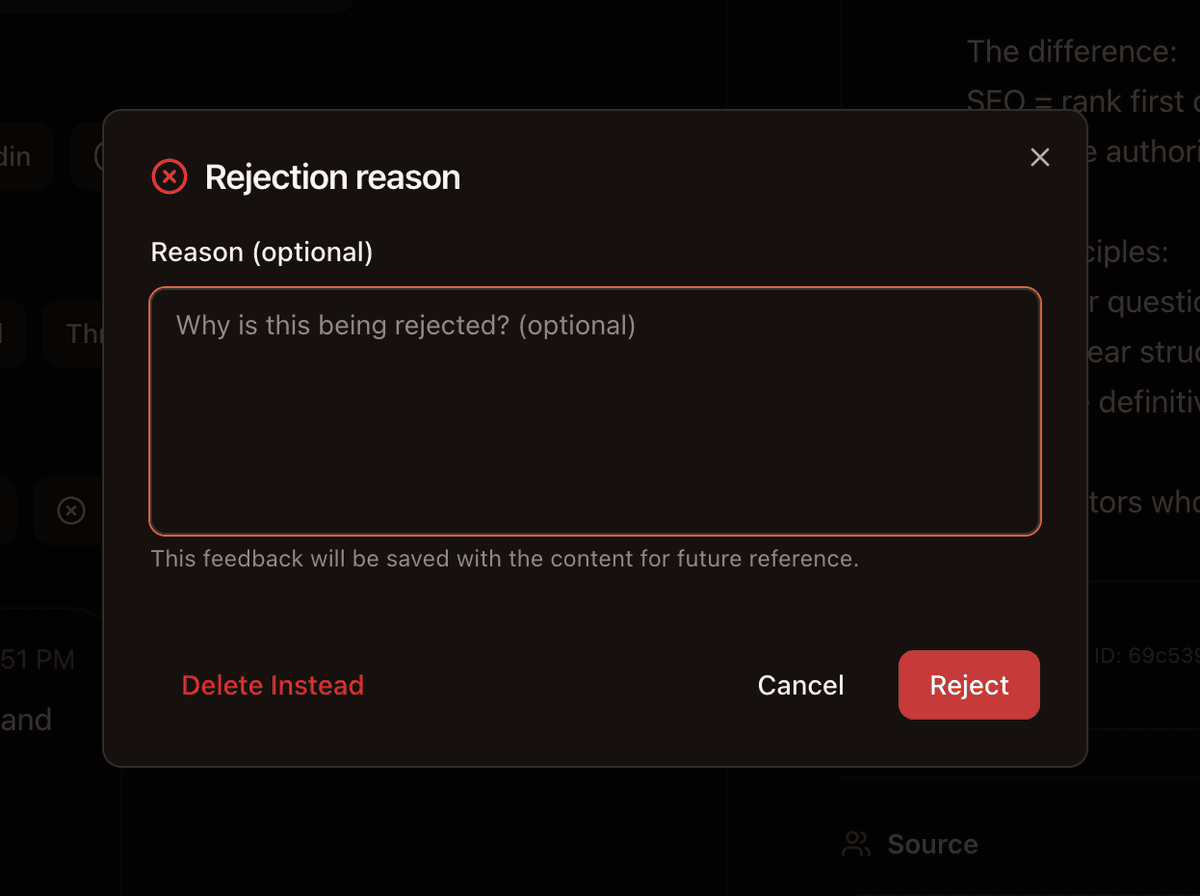
When you click Need Changes or Reject, a dialog asks for your feedback. This feedback is saved with the content and used by the AI to improve future output.
Batch review from the chat panel
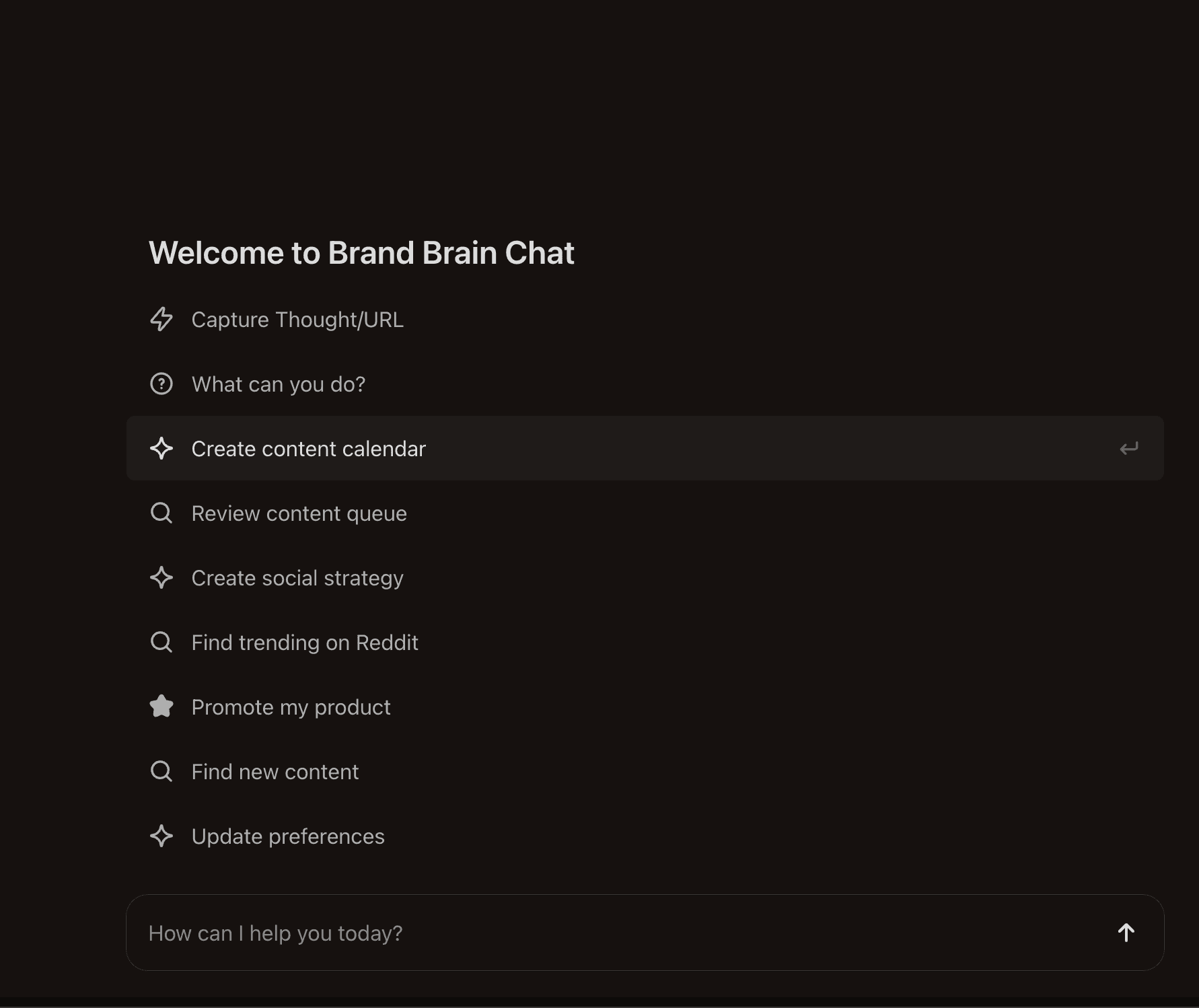
Open Agent Chat and click the Review content queue prompt. The agent retrieves your pending content and does the heavy lifting:
- Checks your calendar to understand what is already scheduled and when
- Detects duplicates on the same platform and flags where the same topic needs different angles
- Prioritizes by urgency based on timeliness, quality, and scheduling gaps
- Presents content visually in manageable batches so you can review without overwhelm
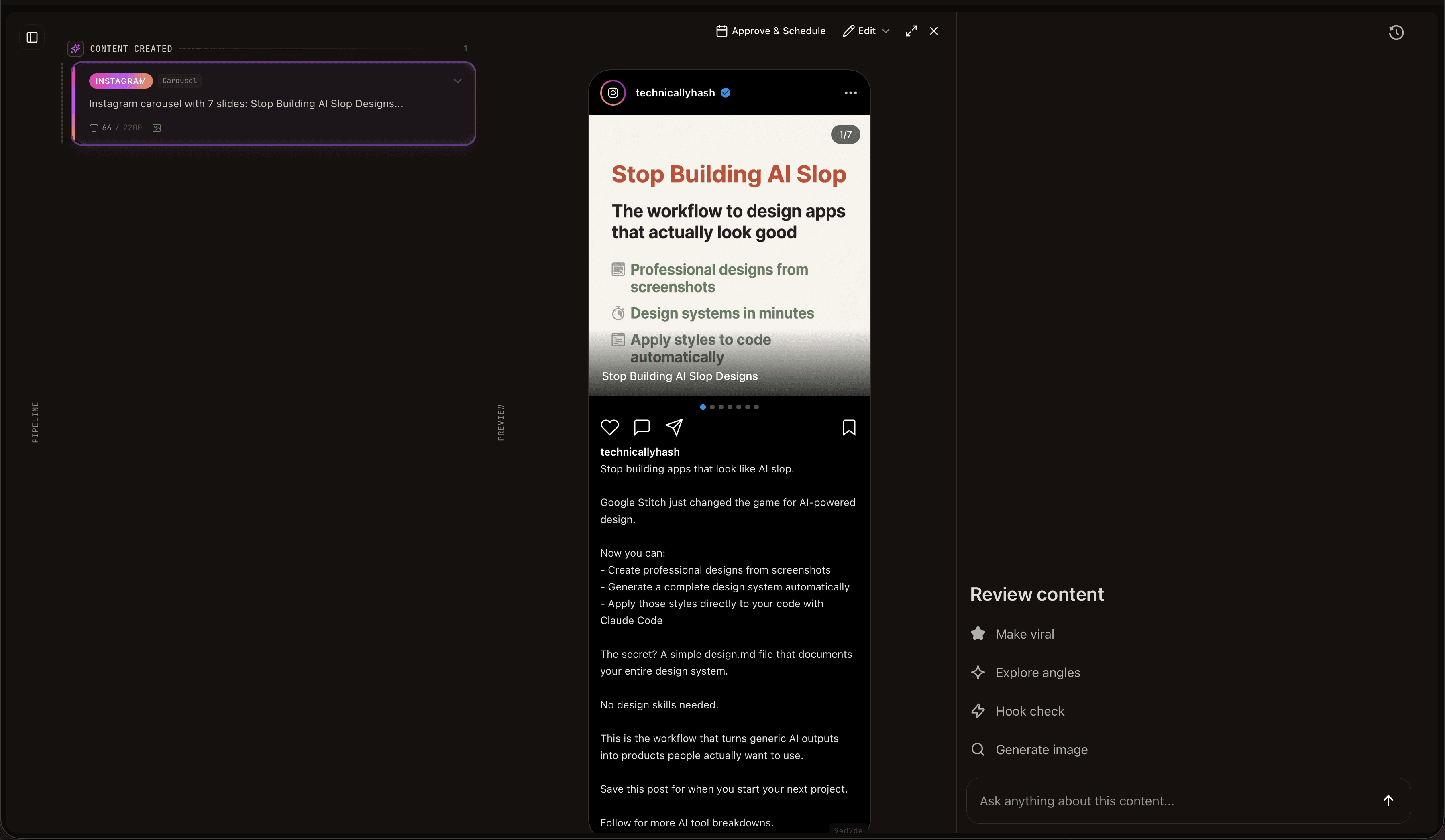
After reviewing the first batch, ask for more: “show me the next 10” or “show prioritized LinkedIn content.” You can also click individual content items in the chat to open the edit panel and refine them with one-click actions.
Refine with one-click actions
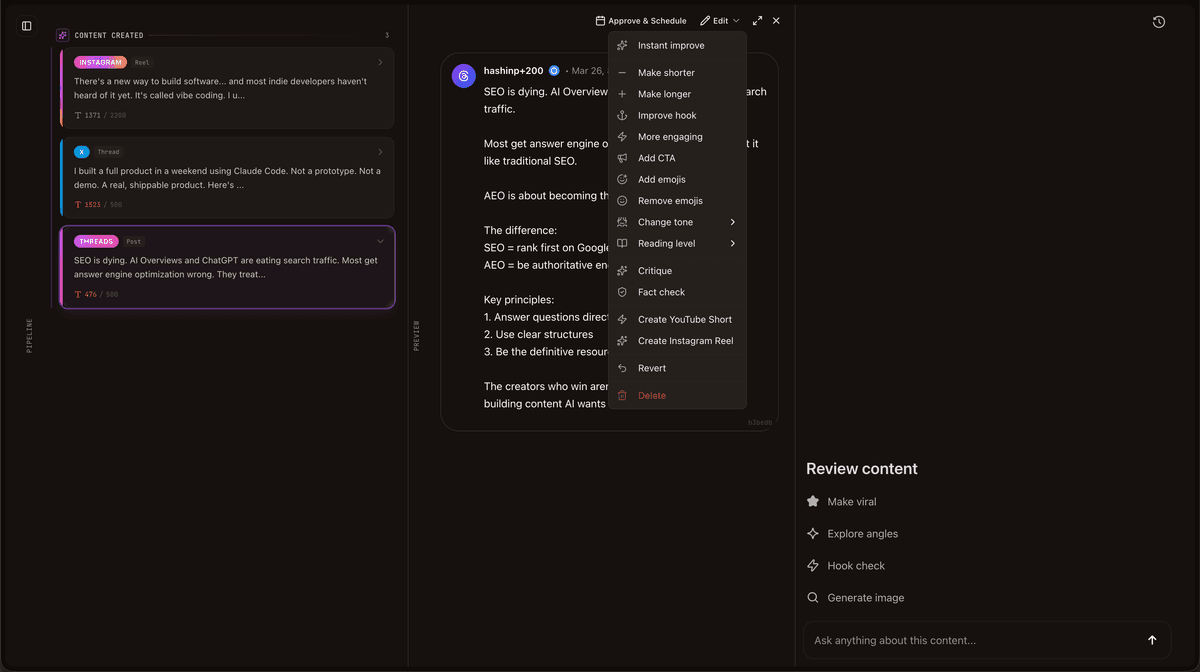
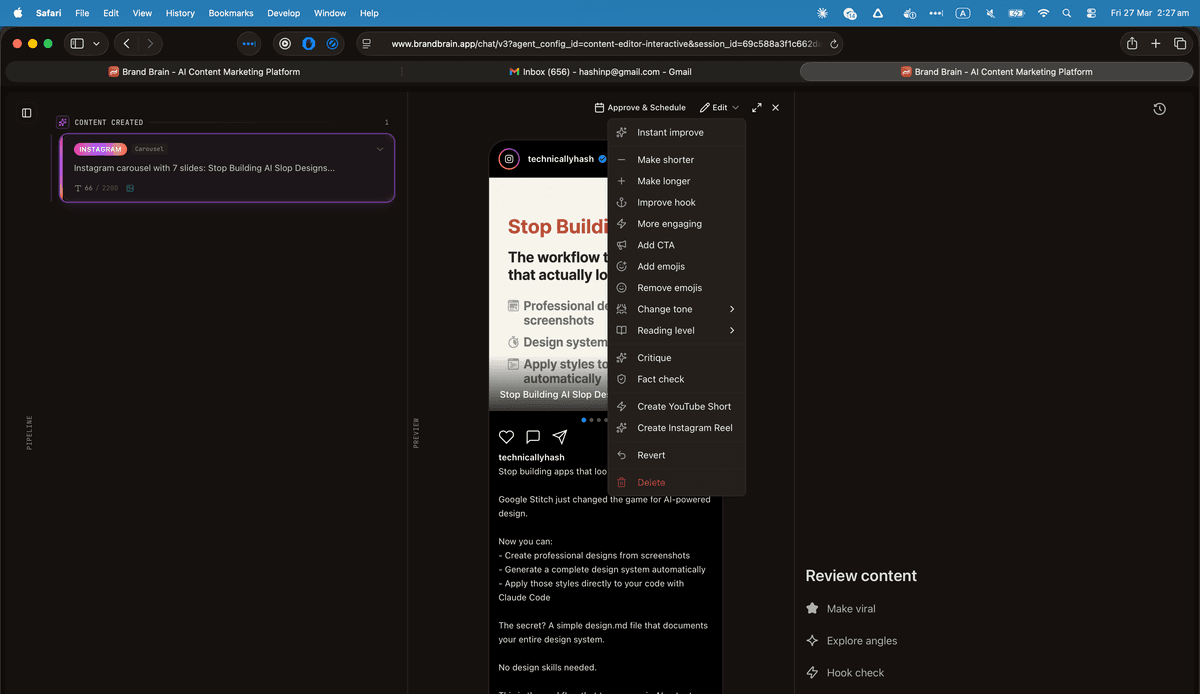
When reviewing content in the chat panel, open the review menu for quick editing actions. Each one runs instantly:
Instant Improve
AI rewrites the content for better quality, clarity, and engagement.
Make Shorter / Longer
Adjust content length with one click. Great for hitting platform limits.
Improve Hook
Strengthen the opening line to grab attention in the first 2 seconds.
Add CTA
Insert a call to action that fits naturally with the content.
Create YouTube Short
Turn the content into a vertical video script for YouTube Shorts.
Create Instagram Reel
Repurpose the content into an Instagram Reel format.
Every review trains your AI
This is the part most people miss. Every time you review content, your AI gets smarter:
- Approve a post and the AI learns what good looks like for you
- Reject with a reason and that becomes a rule the AI follows
- Use one-click actions like “make shorter” or “remove hashtags” and those become preferences applied to all future content
- Request changes with feedback and the Fix Agent auto-fixes the content using your notes and your existing preferences
The result: In week one, you might approve 50% and reject 50%. By week three, you are approving 80%+ because the AI has learned your voice, your rules, and your quality bar. That is when you are ready for the next step.
Go hands-free with auto-review
Once your AI consistently produces content you approve, set up the Auto Content Reviewer agent task. This agent reviews content automatically using six quality criteria:
Brand Voice Alignment
Matches your established voice and style from preferences.
Factual Accuracy
No obvious errors or misleading claims.
Audience Fit
Speaks to your target audience appropriately.
Platform Optimization
Follows platform best practices for format and length.
Engagement Potential
Likely to resonate and drive interaction.
Value Delivery
Provides clear value to the reader.
The agent scores each criterion from 1 to 10 and makes a decision:
All criteria score 8 or above
Some criteria score between 5 and 7
Any criterion scores 4 or below
Content marked as “needs changes” gets automatically fixed by the Fix Agent, which applies your preferences and review feedback to improve the content, then sends it back for another review pass.
Set it up: Go to Agent Tasks and enable the Auto Content Reviewer, or create a custom agent task with your own review rules and approval thresholds. You can also create custom prompts that auto-approve content matching specific criteria you define.